Are you designing a business card and wondering about the perfect size in pixels? Getting the dimensions right is crucial to make sure your card looks sharp and professional, whether it’s printed or shared digitally.
Thank you for reading this post, don't forget to subscribe!If your design is too small, details can get blurry. Too large, and you might waste space or face printing issues. You’ll discover the exact pixel measurements you need, tips to optimize your design, and how to make your business card stand out.
Keep reading to make sure your card leaves the best first impression every time.
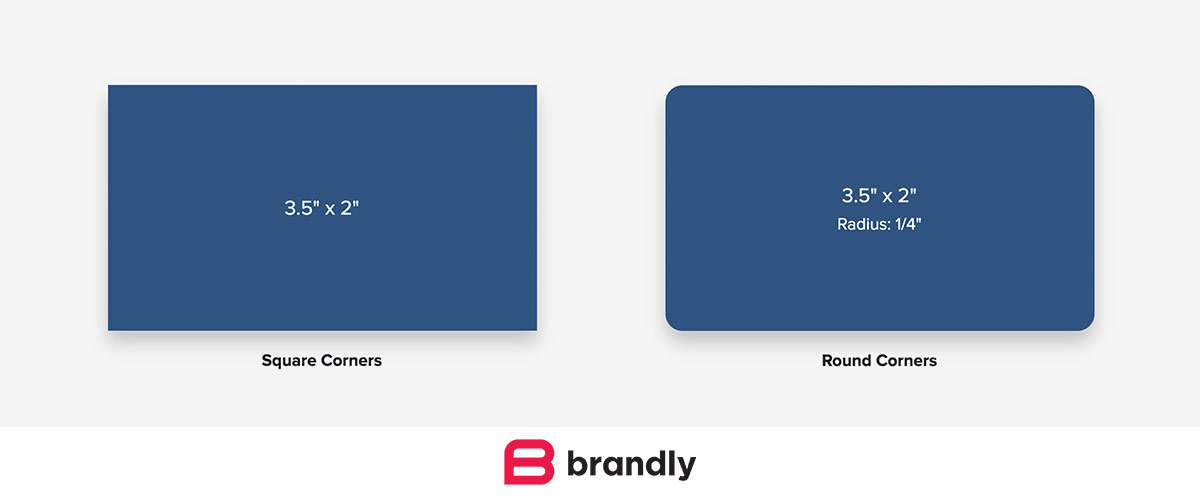
Credit: www.brandly.com
Standard Business Card Dimensions
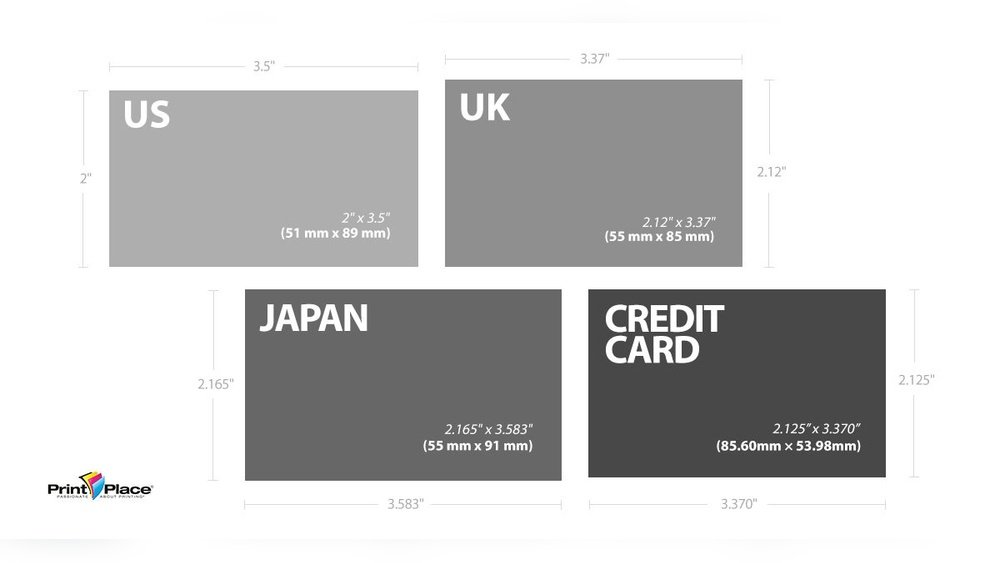
Business cards are small but important tools for professional communication. Their size matters for design and printing. Knowing the standard business card dimensions helps create effective cards. These dimensions vary by region but follow common standards.
Common Sizes In Inches And Millimeters
The most used business card size in the United States is 3.5 by 2 inches. This size fits wallets and cardholders easily. In Europe and many other countries, the standard size is 85 by 55 millimeters. This size is slightly larger than the US standard. Both sizes provide enough space for essential information.
Pixel Dimensions For Different Resolutions
Pixels depend on the resolution, measured in DPI (dots per inch). For 300 DPI, a US card (3.5 x 2 inches) is 1050 by 600 pixels. At 150 DPI, the same card is 525 by 300 pixels. For the European size (85 x 55 mm), at 300 DPI, the pixel size is about 1004 by 650 pixels. Higher DPI gives clearer prints but needs larger pixel dimensions.
Choosing The Right Resolution
Choosing the right resolution is key for a clear, professional business card. Resolution affects how sharp your images and text appear. Low resolution can make your card look blurry or pixelated. High resolution ensures every detail is crisp and easy to read. Understanding resolution helps you prepare a design that prints well and looks great.
Dpi And Its Impact On Quality
DPI stands for dots per inch. It measures how many dots a printer places in one inch. More dots mean higher detail and sharper images. A low DPI results in fuzzy or unclear prints. The right DPI keeps your business card text sharp. It also improves color quality and overall appearance.
Recommended Dpi For Printing
For business cards, 300 DPI is the standard choice. It offers a good balance of quality and file size. Printing below 300 DPI can cause blurry text or images. Higher than 300 DPI usually does not improve quality much. Most printers and designers recommend 300 DPI for crisp and clear prints.
Designing For Digital And Print
Designing business cards for both digital and print requires careful attention to detail. The size in pixels must match the intended use. Digital designs need different settings than print designs. Understanding color modes and layout areas is key for a sharp, professional look.
Color Modes: Rgb Vs Cmyk
Digital screens use RGB colors. This mode blends red, green, and blue light. It creates bright and vibrant images for monitors and phones.
Print uses CMYK colors. This mode mixes cyan, magenta, yellow, and black inks. It produces accurate colors on paper but looks dull on screens.
Design in RGB for online use and convert to CMYK for print. This avoids unexpected color changes and keeps your design true.
Safe Zones And Bleed Areas
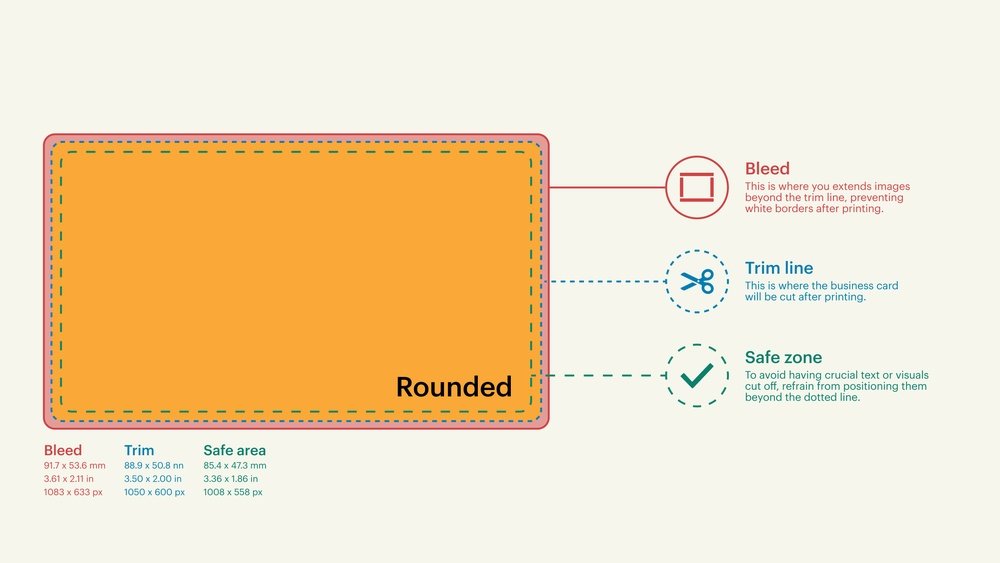
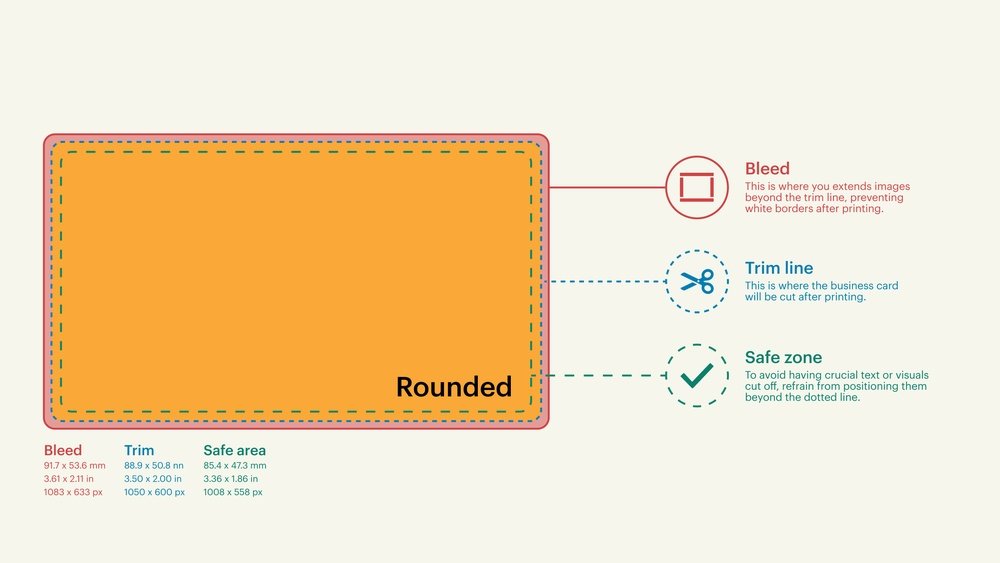
Safe zones keep important text and logos inside a margin. This prevents cutting off vital parts during printing. Keep all key elements inside this area.
Bleed areas extend beyond the card’s edge. They allow for slight cutting errors. Designs that reach the edge should extend into the bleed to avoid white borders.
Set your file with correct bleed and safe zones. This ensures your business card looks perfect after printing.

Credit: packagingbee.com
Tools For Creating Business Cards
Creating a business card starts with the right tools. These tools help design cards that look professional and fit the correct size in pixels. Choosing the right software or template makes the process easier and faster. Simple tools give great results even for beginners. Understanding these options helps create a card that stands out.
Popular Design Software Options
Many people use design software to create business cards. Adobe Photoshop offers advanced control over design details. Adobe Illustrator works well for vector-based graphics. Canva is user-friendly and perfect for quick designs. Microsoft Publisher provides simple layouts for beginners. Each tool supports custom pixel dimensions for business card size. Choose software based on skill level and design needs.
Templates And Customization Tips
Templates save time and give a clear starting point. Many websites offer free or paid business card templates. Pick a template close to your style and brand colors. Adjust fonts, logos, and contact details easily. Keep text readable by choosing clear fonts and sizes. Ensure the template matches the standard pixel size for printing. Small changes can make your card unique and personal.
Optimizing Your Design For Printing
Optimizing your business card design for printing ensures the final product looks sharp and professional. Designs must meet specific technical standards for best results. Preparing files correctly avoids common printing issues like blurriness or color errors.
File Formats And Export Settings
Save your design in the right file format to keep quality high. PDF is the most common choice for printing. It preserves fonts and images well. Use high resolution, at least 300 DPI, to ensure clarity. Export your file with CMYK color mode. This matches printer color settings better than RGB. Include bleed areas, usually 0.125 inches, to avoid white edges after trimming.
Proofing And Test Prints
Proof your design carefully before sending it to print. Check text for spelling and alignment errors. Print a test copy on your home printer to see how it looks. Compare colors on screen versus print for accuracy. Adjust brightness or contrast if needed. Test prints help catch mistakes early and save money.
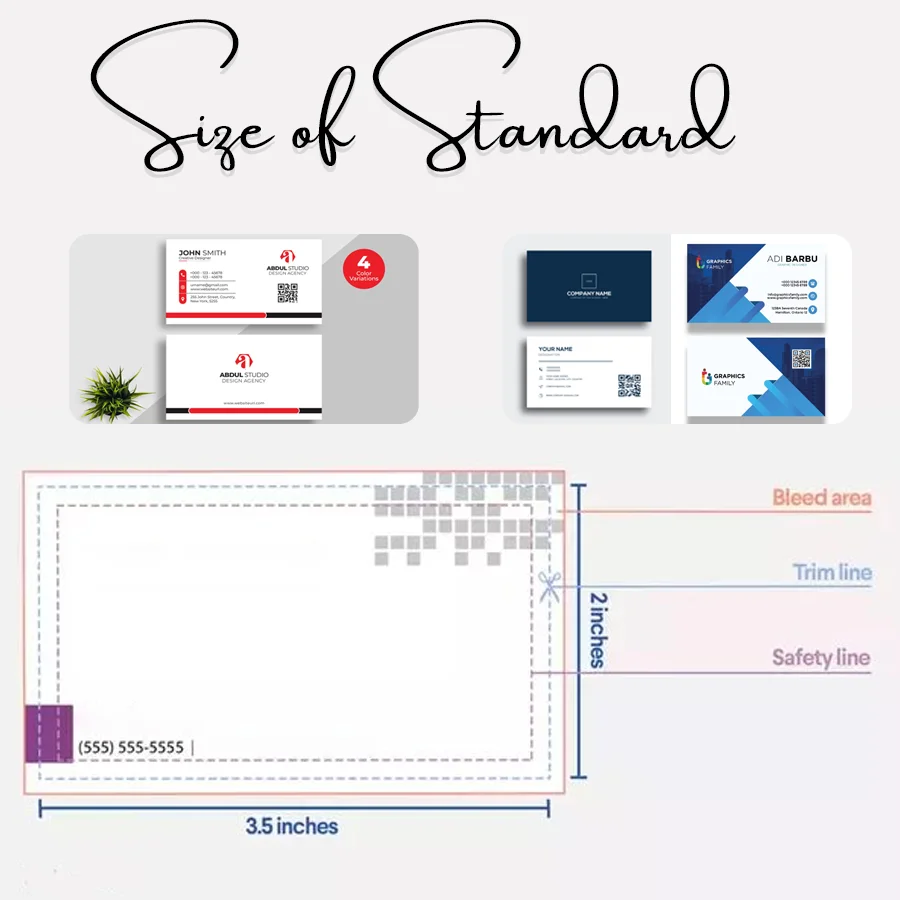
Credit: packagingbee.com
How IOKPRINT Can Help You with Business Card Size in Pixels
Practical Tips for Working with Business Card Size in Pixels
Understanding the business card size in pixels is essential when moving from design concepts to final print-ready files. Since standard business card dimensions are commonly 3.5 x 2 inches, converting these to pixels depends heavily on the resolution you choose—typically 300 DPI for print clarity. This ensures your design maintains sharpness and detail, especially when incorporating logos or small text.
When designing both for digital previews and physical printing, it’s helpful to use tools that allow you to set precise pixel dimensions while considering bleed and safe zones. Platforms like IOKPRINT provide templates and specifications that align with industry standards, simplifying this process. Additionally, optimizing your design for printing means paying attention to color modes and resolution to avoid pixelation or color shifts.
- Set your canvas to 1050 x 600 pixels for a 3.5 x 2 inch card at 300 DPI
- Include bleed areas—usually 0.125 inches—to prevent trimming issues
- Use CMYK color mode for print designs
If you need guidance on preparing your files or have questions about size specifications, contacting customer support through www.iokprint.in can provide helpful insights without any pressure, making your business card project smoother and more accurate.
Frequently Asked Questions
What Is The Standard Business Card Size In Pixels?
A standard business card size is 1050 x 600 pixels at 300 DPI. This size ensures clear print quality for most printers.
How To Convert Business Card Size From Inches To Pixels?
Multiply the inches by the DPI (dots per inch). For example, 3. 5 x 2 inches at 300 DPI equals 1050 x 600 pixels.
Why Is 300 Dpi Important For Business Card Pixels?
300 DPI means 300 dots per inch, which gives sharp print quality. Lower DPI causes blurry or pixelated cards.
Can Business Card Size In Pixels Vary By Country?
Yes, some countries use different standard sizes. But 1050 x 600 pixels at 300 DPI fits most global standards.
How To Resize A Business Card Image Without Losing Quality?
Keep the DPI at 300 and adjust pixel dimensions carefully. Use graphic software like Photoshop or Canva for best results.
Conclusion
Knowing the right business card size in pixels helps design clear cards. It ensures your card looks good on screens and prints well. Use standard pixel sizes for easy sharing and printing. Remember, simple and clear designs catch attention fast.
Keep text readable and images sharp. A well-sized card shows professionalism and care. Small details make a big difference in business connections. Use this guide to create the perfect digital and printed business card. Your card will stand out and leave a strong impression.