Want to create professional-looking business cards right at home? Your Canon printer makes it easier than you think.
Thank you for reading this post, don't forget to subscribe!Imagine handing out cards that leave a great first impression—without spending extra money at the store. In this guide, you’ll discover simple steps to design and print your own business cards quickly and clearly. Ready to turn your ideas into eye-catching cards that people remember?
Let’s get started!
Choosing The Right Paper
Choosing the right paper is key for great business cards. Paper affects the card’s look, feel, and durability. The right choice makes your card stand out and feel professional. Use paper that works well with your Canon printer for the best results.
Types Of Business Card Paper
Business card paper comes in many types. Matte paper has no shine and looks clean. Glossy paper shines and makes colors pop. Linen paper has a textured feel for a classy touch. Choose a type that matches your brand style.
Paper Weight And Finish
Paper weight means how thick the paper is. Thicker paper feels stronger and more premium. Most business cards use 300 to 350 gsm weight. The finish can be smooth, textured, or coated. Smooth finish prints clear images. Textured finish adds a unique feel.
Where To Buy Quality Paper
Buy paper from office supply stores or online shops. Check for paper made for inkjet printers like Canon. Brands such as Hammermill and Neenah offer good quality. Buy enough paper to avoid running out during printing.
Credit: inkgenie.com
Designing Your Business Card
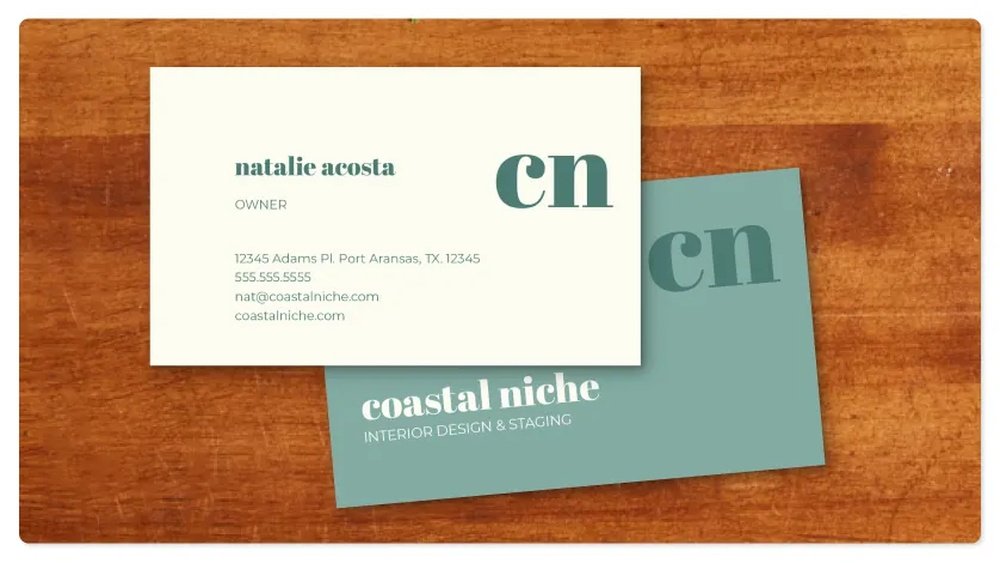
Designing your business card is a key step in making a great first impression. It shows your style and helps people remember you. With a Canon printer, you can create a unique card that fits your brand. The design process is simple and fun. You can choose colors, fonts, and images that match your business.
Focus on clear information and a clean look. A well-designed card looks professional and invites people to connect. Let’s explore how to design your business card using Canon tools and features.
Using Canon Software
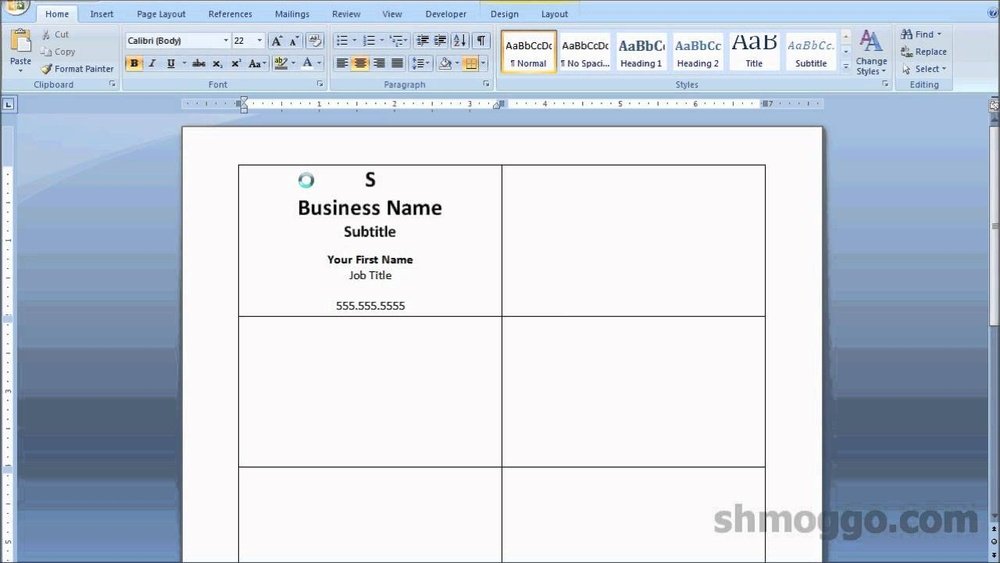
Canon printers come with easy-to-use software for card design. The software guides you through each step. You can start from scratch or use ready templates. It lets you add text, images, and shapes quickly. The interface is simple, making it good for beginners. You can save your design and print multiple copies easily.
Selecting Templates
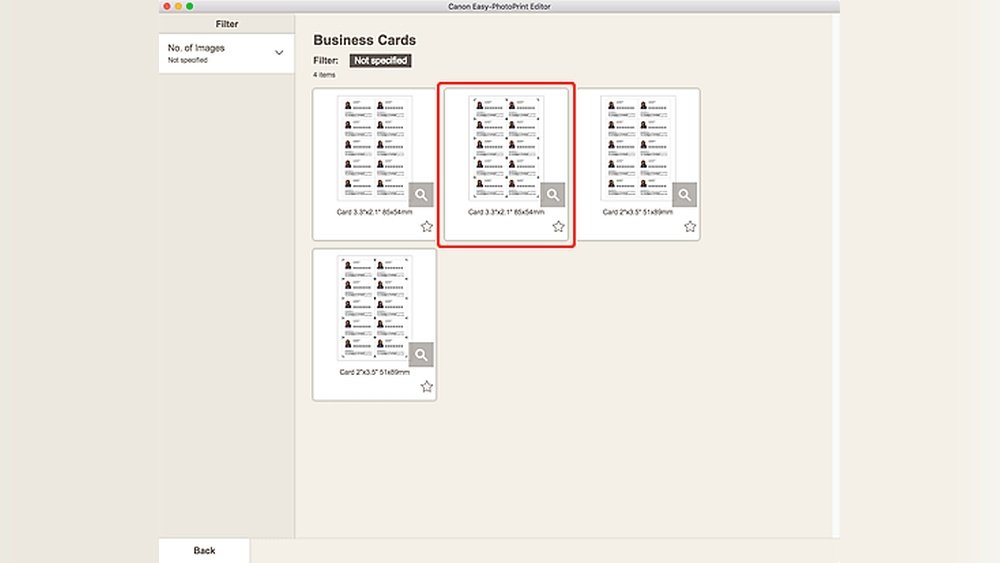
The software offers many business card templates. Choose one that fits your style and business type. Templates help keep the card balanced and neat. They also save time in design. Look for layouts that highlight your name and contact details. You can change the template later if you want a new look.
Customizing Layout And Colors
Change the layout to suit your needs. Move text boxes and images around the card. Pick colors that match your brand or logo. Use contrasting colors for easy reading. Keep the design simple to avoid clutter. Adjust font sizes and styles to make your card clear and attractive.
Adding Logos And Images
Adding a logo makes your card unique and professional. Use high-quality images for a sharp print. Place logos where they don’t block important text. You can add pictures or icons related to your business. Make sure images fit well and do not crowd the card space.
Setting Up The Printer
Setting up your Canon printer correctly is the first step to printing sharp, professional business cards. Proper setup ensures smooth printing and reduces errors. Follow these simple steps to prepare your printer for the task.
Installing Printer Drivers
Start by installing the correct printer drivers on your computer. Drivers help your computer and printer communicate. Visit Canon’s official website to download the latest drivers. Choose the right model and operating system. Run the installation file and follow on-screen instructions. Restart your computer after installation to apply changes.
Adjusting Print Settings
Open the print menu on your computer. Select your Canon printer from the list. Choose the paper size that matches your business card dimensions. Set the print quality to high for clear text and images. Select the correct paper type, such as card stock. Adjust color settings to get the best results. Save these settings for future print jobs.
Loading Paper Correctly
Use high-quality card stock for your business cards. Load the paper into the printer tray with the print side facing down. Align the paper guides so the sheets stay straight. Avoid overfilling the tray to prevent jams. Check that the printer recognizes the paper size before printing. Proper paper loading helps avoid misprints and paper jams.
Printing Your Business Cards
Printing your business cards with a Canon printer is simple and fast. After designing your card, the next step is printing. This step requires care to ensure your cards look professional and clear.
Use the right paper type made for business cards. Set your printer settings to match this paper. Print one card first to check the quality. Adjust if needed before printing many copies.
Test Printing
Print a single card to check colors and alignment. Check if text is sharp and easy to read. Look for any smudges or color mistakes. Use plain paper first to save card stock. Make small changes if the print is not perfect.
Printing Multiple Copies
Once the test print looks good, print multiple cards. Use the printer’s copy feature or print several pages. Make sure the paper tray has enough card stock. Avoid touching wet ink to prevent smears. Let cards dry fully before stacking or cutting.
Troubleshooting Common Issues
If prints come out blurry, clean your printer heads. Check ink levels and replace cartridges if low. Paper jams can happen; remove stuck paper carefully. Adjust printer settings if colors look off. Restart the printer to fix small errors.
Cutting And Finishing Touches
Cutting and finishing touches make your business cards look professional. These steps ensure clean edges and a polished feel. A neat cut and smooth corners improve the card’s appearance. Protective coatings help your card last longer and resist damage.
Using A Paper Cutter
A paper cutter gives straight, even cuts. Align your printed sheet carefully on the cutter base. Press down the blade with a firm, steady motion. Avoid cutting freehand with scissors to keep edges sharp. Use a ruler and craft knife only if you lack a paper cutter.
Rounding Corners
Rounded corners make cards feel smooth and modern. Use a corner rounder tool to trim each corner. Press the card firmly into the tool and squeeze. Rounded edges prevent the cards from bending or tearing easily. This small step adds a nice touch of style.
Adding Protective Coatings
Protective coatings keep your cards safe from dirt and water. Use a clear spray or laminate sheet for coating. Spray lightly and let it dry fully before stacking cards. Laminating adds shine and strength to each card. Choose coatings that do not smudge your printed design.
Credit: support.usa.canon.com
Tips For Professional Results
Creating business cards with a Canon printer can be simple and effective. Small details make a big difference in the final look. Follow these tips to get clear, sharp, and professional cards.
Maintaining Printer Quality
Keep your Canon printer clean and well-maintained. Dust or dirt can cause smudges or streaks on cards. Regularly check and clean the print heads for sharp prints. Use the printer’s maintenance tools to align and test print quality often.
Choosing The Right Ink
Use genuine Canon ink cartridges for best results. Third-party ink may cause color fading or damage the printer. Choose ink that matches your card design colors. High-quality ink ensures vibrant and long-lasting prints.
Storage And Handling Of Cards
Store printed cards in a dry and cool place. Avoid direct sunlight to prevent colors from fading. Handle cards with clean hands to avoid smudges or fingerprints. Stack cards neatly to keep edges sharp and clean.
Credit: ij.manual.canon
Frequently Asked Questions
How Do I Set Up My Canon Printer For Business Cards?
To set up your Canon printer, load the business card paper in the tray. Adjust print settings to match paper size. Select high-quality print mode for clear results. Use Canon’s print software or compatible design apps for precise layout.
What Paper Type Is Best For Canon Business Cards?
Use thick, matte or glossy cardstock specifically designed for business cards. Paper weight should be between 200-300 gsm. This ensures durability and professional appearance. Canon printers handle these types well, providing sharp text and vibrant colors.
Can I Design Business Cards Directly On Canon Software?
Yes, Canon’s Easy-PhotoPrint Editor allows simple business card design. It offers templates and customization options. For advanced design, use software like Adobe Illustrator, then print with Canon’s software for best output.
How Do I Avoid Ink Smudging On Canon Business Cards?
Use high-quality, quick-drying ink cartridges. Allow cards to dry completely before stacking. Avoid touching printed surfaces immediately. Adjust printer settings to reduce ink saturation for faster drying.
Conclusion
Creating business cards with your Canon printer is simple and quick. Choose a good design and use quality paper. Print a test card first to check colors and alignment. Adjust settings if needed to get the best result. Personalize each card with your contact details.
This way, your cards will look professional and clear. Keep your printer clean for smooth printing every time. Now, you have all you need to make great business cards at home. Try it today and make a strong impression!