Want to create professional-looking business cards without leaving your home? You’re in the right place.
Thank you for reading this post, don't forget to subscribe!Printing business cards at home using Canva is easier than you think. Imagine having full control over your design and printing, saving both time and money. In this guide, you’ll learn simple steps to design and print eye-catching business cards that make a great first impression.
Ready to turn your ideas into real cards? Let’s dive in and get started!
Credit: www.canva.com
Choosing The Right Business Card Template
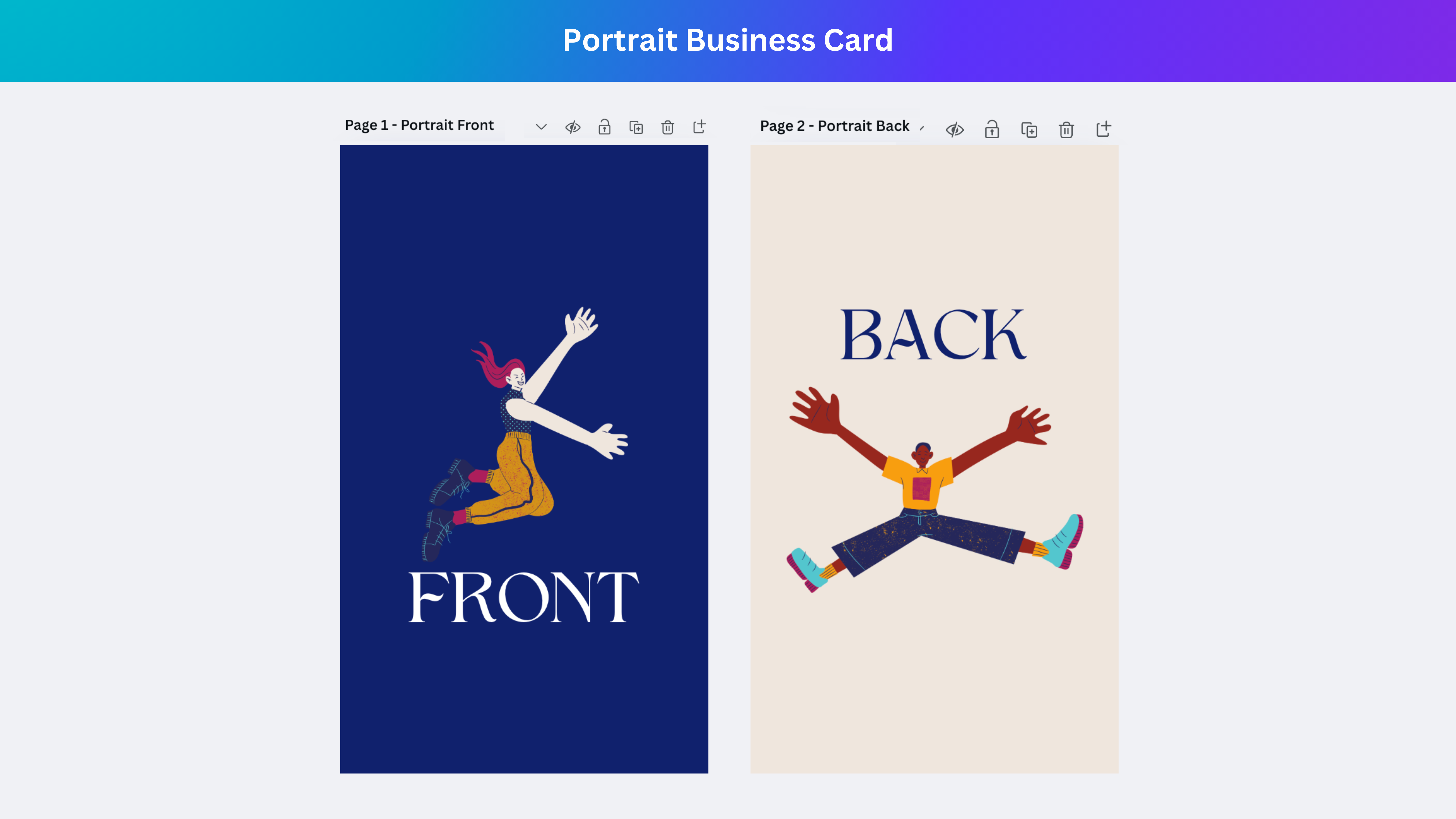
Choosing the right business card template is a key step in printing your cards at home using Canva. The template sets the look and feel of your card. It helps you make a strong first impression with clients and contacts. Picking a good design makes your information clear and easy to read.
Canva offers many templates. Each one fits different styles and professions. Finding the right one saves time and guides your design choices. Let’s explore how to select and customize a template that suits your needs.
Exploring Canva’s Template Library
Canva’s library has hundreds of business card templates. They vary in style, layout, and color. You can browse by category or search with keywords. This helps you find a design that matches your business type. Templates range from simple and modern to creative and bold. Choose one that fits your brand’s personality.
Customizing Design Elements
Templates are easy to edit. Change text, images, and icons to fit your brand. Upload your logo to make cards unique. Move elements around to improve balance and space. Adjust sizes to make important details stand out. Keep your design clean and uncluttered. Simple cards often look more professional and readable.
Selecting Color And Font Styles
Colors and fonts affect how your card feels. Pick colors that match your brand’s palette. Use contrasting colors for text and background to improve readability. Choose fonts that are easy to read. Avoid fancy or script fonts for main details. Use one or two fonts to keep the design neat. Consistent colors and fonts build a strong brand image.
Credit: www.etsy.com
Preparing Your Design For Print
Preparing your design for print is a key step before printing business cards at home from Canva. This process helps ensure your cards look professional and clear. Proper preparation avoids blurry images, cut-off text, or wrong sizing. Follow these steps to get your design print-ready.
Setting The Correct Dimensions
Start by setting the right size for your business card. The standard size is 3.5 by 2 inches. Canva lets you enter custom dimensions easily. Choose pixels or inches, but inches are best for printing. Make sure your canvas matches the size your printer supports.
Ensuring High Resolution
Use high-resolution images and graphics for sharp prints. Set your design at 300 DPI (dots per inch). This resolution keeps your text and images crisp. Low-resolution files look pixelated and unprofessional. Canva automatically saves designs in good quality but double-check before printing.
Adding Bleed And Safe Zones
Bleed is the extra space around your design. It prevents white edges after cutting. Add at least 0.125 inches of bleed on all sides. Safe zones keep important text inside a margin. Keep key details 0.125 inches away from edges. This avoids accidental cuts on vital information.
Printing Business Cards At Home
Printing business cards at home saves time and money. It gives control over design and quality. You can create cards that fit your style perfectly. With Canva, designing is simple. Printing needs the right steps to look professional.
Choosing The Best Paper Type
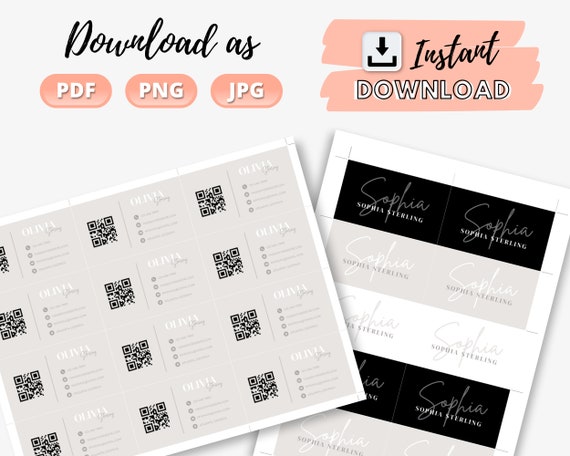
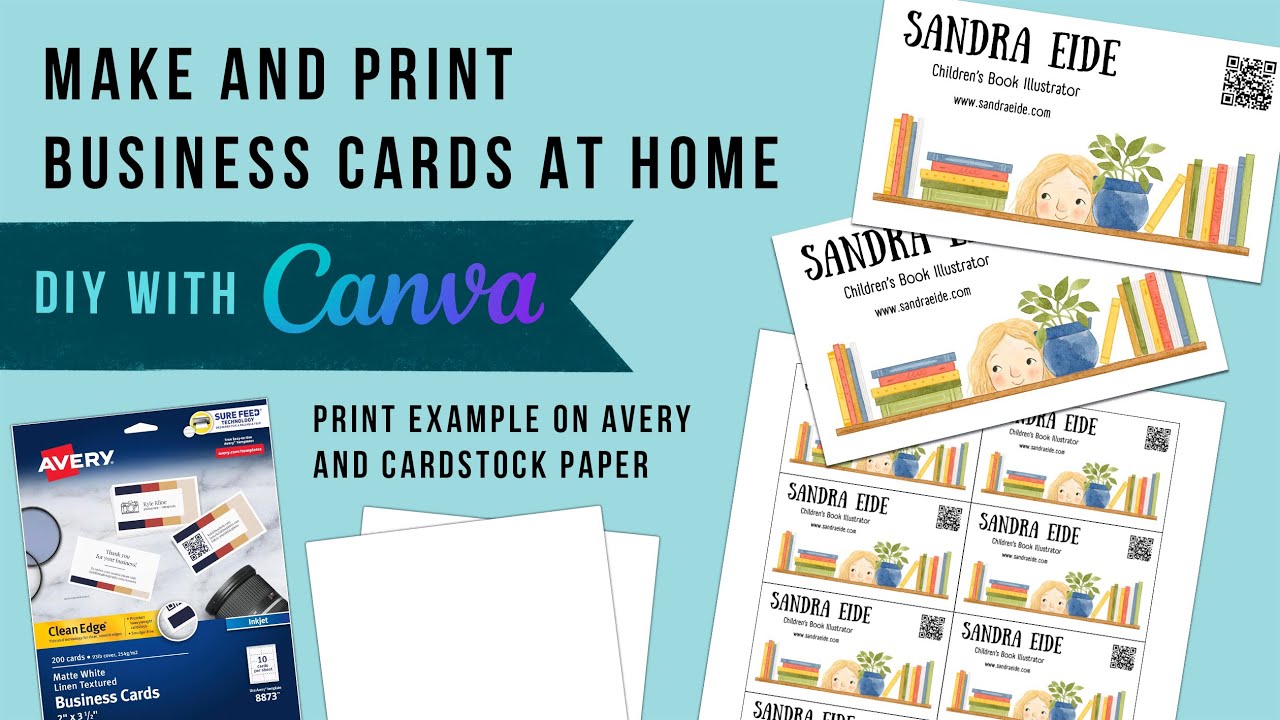
Pick thick paper for sturdy cards. Cardstock with 250-300 gsm works well. Matte finish offers a smooth, non-shiny look. Glossy finish makes colors bright and sharp. Choose paper that your printer can handle easily. Check paper size matches your card design.
Adjusting Printer Settings
Set your printer to the highest quality. Choose the correct paper type in settings. Use color mode for full-color cards. Select the right paper size to avoid cropping. Turn off any automatic color corrections. This keeps your colors true to design.
Test Printing And Quality Checks
Print a test page on plain paper first. Check alignment and colors carefully. Look for any smudges or streaks. Adjust settings if colors seem off. Print on your chosen cardstock after tests. Cut a sample card to check size and edges.
Credit: hlvk.fi
Cutting And Finishing Touches
Cutting and finishing touches make your business cards look professional. These steps ensure clean edges and a polished feel. Taking time here improves the card’s impact and durability.
Using Cutting Tools For Precision
Use a sharp craft knife or paper cutter for straight edges. A metal ruler helps keep the cut lines clean. Cut slowly to avoid jagged edges or paper tears. Trim excess paper carefully around the design.
Rounding Corners And Laminating
Round corners add a smooth, modern look. Use a corner punch tool for uniform curves. Laminating cards increases strength and water resistance. Use self-adhesive laminating sheets or a laminator machine. Press firmly to avoid bubbles or wrinkles.
Storage And Presentation Tips
Store cards in a clean, dry place to keep them fresh. Use a card holder or box to prevent bending. Present cards in small stacks or sleeves for easy sharing. Neat presentation leaves a good impression on clients.
Frequently Asked Questions
How Do I Design Business Cards On Canva For Printing?
Use Canva’s templates and tools to create your card. Customize text, colors, and images easily.
What Paper Type Is Best For Printing Business Cards At Home?
Thick cardstock paper, around 300gsm, works best for a professional look and feel.
How Do I Set The Correct Size For Canva Business Cards?
Choose the standard size 3. 5 x 2 inches in Canva before designing your card.
Can I Print Multiple Business Cards On One Sheet At Home?
Yes, arrange several cards on one page in Canva, then print and cut carefully.
Conclusion
Printing business cards at home from Canva is simple and cost-effective. You control the design, paper choice, and print quality. Just follow each step carefully for the best result. This method saves time and lets you update your cards anytime.
Keep your printer ready and choose the right cardstock. Personalize your cards to match your style and business. Start printing today and make a strong first impression. Easy, fast, and affordable—your perfect business cards are within reach.