Are you struggling to print your business card size PDF perfectly every time? You’re not alone.
Thank you for reading this post, don't forget to subscribe!Getting the right size and quality can be tricky if you don’t know the exact steps. Imagine handing out cards that look sharp and professional, every single time. In this guide, you’ll discover simple, clear instructions to print your business card size PDF without any guesswork.
Keep reading, and you’ll soon have cards that make a great first impression—without the frustration.
Preparing Your Pdf File
Preparing your PDF file is a key step before printing business card size PDFs. A well-prepared file ensures clear text and sharp images. It also helps avoid printing errors and wasted materials.
Focus on the correct size, resolution, and design. These aspects make your business card look professional and easy to read.
Choosing The Right Dimensions
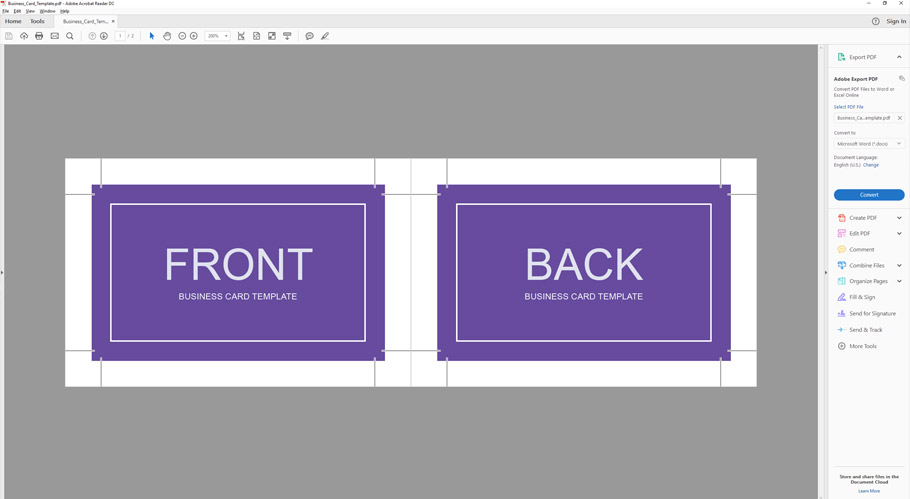
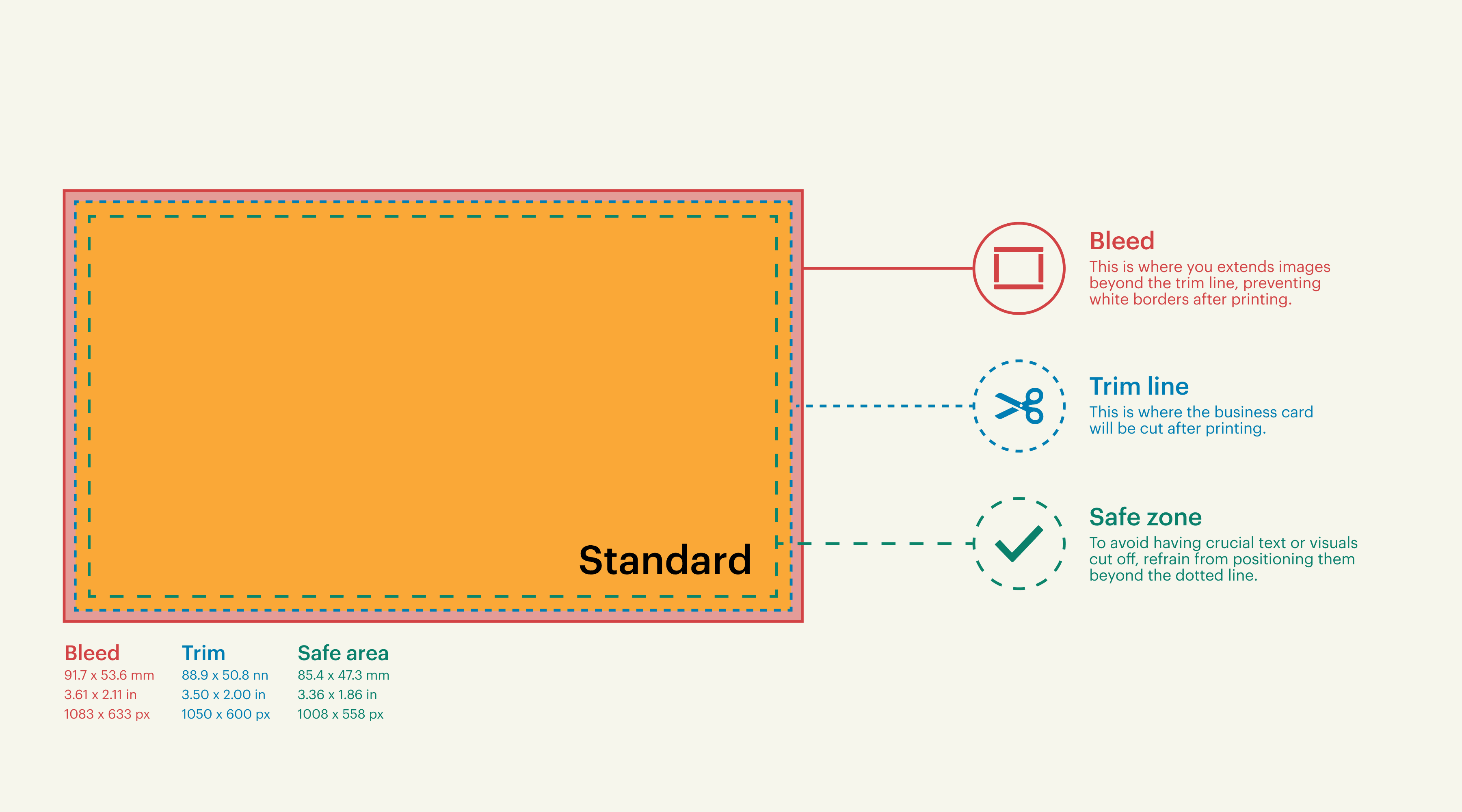
Business cards usually measure 3.5 x 2 inches. Set your PDF file size to these exact dimensions. This avoids cropping or stretching during printing. Include a bleed area of 0.125 inches around the edges. It prevents white borders after cutting. Use standard dimensions unless your printer asks otherwise.
Setting The Resolution
Set the resolution to 300 dots per inch (DPI). This ensures sharp and clear print quality. Lower DPI can cause blurry images and text. Higher DPI files are larger but do not improve print quality much. Check your design software settings before exporting the PDF.
Design Tips For Business Cards
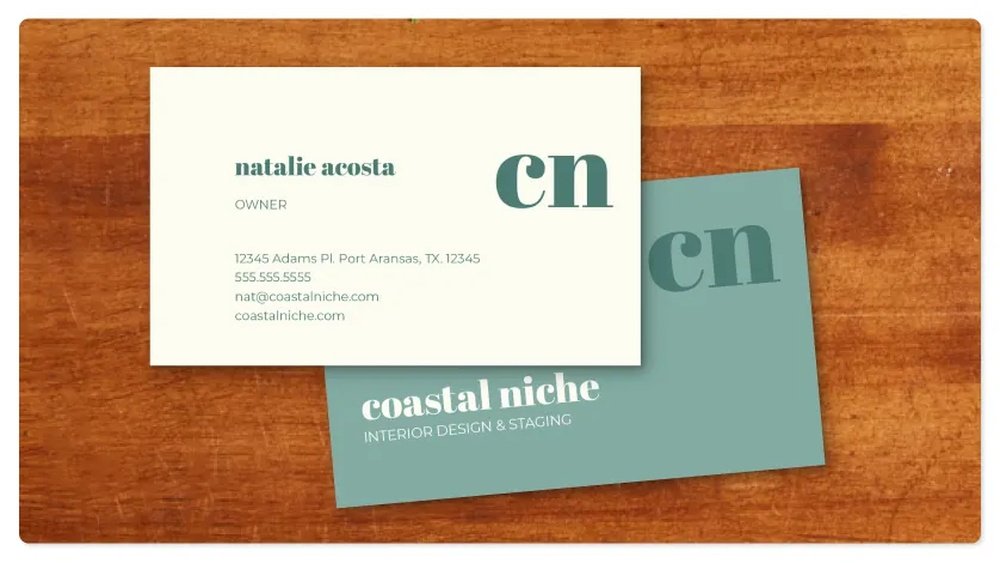
Keep the design simple and clean. Use easy-to-read fonts and avoid clutter. Leave space around text to improve readability. Use high-contrast colors for better visibility. Make sure all important details fit within the safe area. Avoid placing text too close to edges.
Credit: graphicmama.com
Configuring Printer Settings
Configuring your printer settings correctly is key to printing business card size PDFs. Proper settings ensure sharp, clear prints that fit the card dimensions perfectly. Small mistakes in setup can lead to poor print quality or wrong sizes.
This guide helps you adjust important printer options. You will learn how to select the right paper size, set the print scale, and choose the best print quality. Follow these steps for the best results.
Selecting Paper Size
Choose the paper size that matches your business card dimensions. Most business cards are 3.5 by 2 inches. Find this size in your printer’s paper settings. If it is not listed, select “Custom Size” and enter the exact measurements.
Using the correct paper size prevents your cards from being cut off or printed too small. Double-check this setting before printing.
Adjusting Print Scale
Set the print scale to 100% to keep the original size of your PDF. Avoid options like “Fit to Page” or “Shrink to Fit.” These options can resize your business card and ruin the layout.
Check the preview window to confirm the size looks right. If your printer software allows, disable any scaling or resizing options.
Choosing Print Quality
Select a high print quality for clear text and sharp images. Look for settings like “Best” or “High.” Low quality may cause blurry or faded prints.
Keep in mind that higher quality uses more ink. Balance quality with ink use based on your needs.
Test print one card first to verify the quality and colors before printing many copies.
Using Pdf Software For Printing
Printing a business card size PDF requires careful setup to get the right results. Using PDF software helps control the print settings easily. It ensures your cards print clearly and fit perfectly on the paper. Follow simple steps to set up your print job correctly.
Setting Custom Page Size
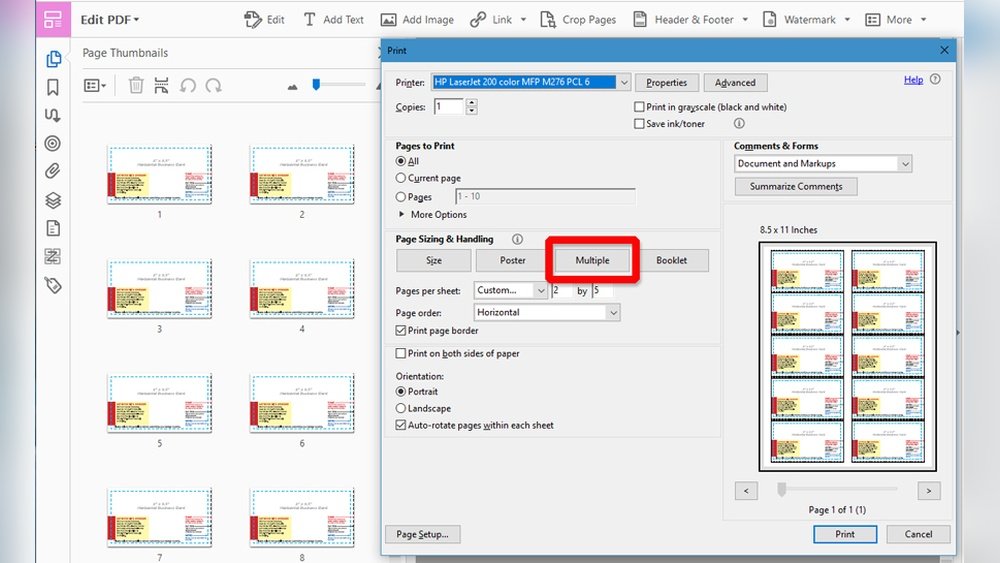
Open your PDF software and find the print settings. Look for the option to set a custom page size. Enter the exact dimensions of a business card, usually 3.5 x 2 inches. This step tells the printer the right size to print. It avoids unwanted cropping or resizing.
Enabling Borderless Printing
Choose borderless printing if your printer supports it. This option prints the design without white edges. It makes your business card look professional and clean. Check the printer settings menu to turn on borderless mode before printing.
Previewing Before Print
Always preview your print before sending the job to the printer. The preview shows how the card will appear on paper. Check for correct size, alignment, and colors. Preview helps catch mistakes and saves paper and ink.
Credit: www.avery.com
Printing On Business Card Paper
Printing on business card paper needs care and attention. This paper is thicker than normal sheets. It needs special handling for the best results. Small mistakes can cause smudges or paper jams. Follow clear steps to print sharp, professional cards.
Types Of Business Card Paper
Business card paper comes in many types. Matte paper has a smooth, non-shiny surface. It looks clean and is easy to write on. Glossy paper shines and makes colors pop. It looks bright but can show fingerprints. Textured paper has patterns you can feel. It adds style and a unique touch. Choose paper that fits your brand and printer type.
Loading Paper Correctly
Load business card paper carefully. Check your printer’s manual for the right tray. Place the paper so the printable side faces the correct way. Align edges straight to avoid crooked prints. Do not overload the tray. Leave some space for smooth feeding. Handle the paper gently to keep it flat and clean.
Avoiding Paper Jams
Paper jams slow down printing and ruin cards. Use fresh, undamaged business card sheets. Avoid bending or folding the paper. Clean the printer rollers regularly. Print one sheet at a time if possible. Use the correct paper settings in your printer menu. Pause and check if the printer stops. Fix jams immediately to prevent damage.
Troubleshooting Common Issues
Printing business card size PDFs can be tricky. Problems often arise during the printing process. These issues can affect the final look and size of your cards. Knowing common problems helps fix them fast. Below are common printing issues and ways to solve them.
Misaligned Prints
Misaligned prints happen when the design does not fit the card edges. This makes the text or images cut off or uneven. Check your printer settings first. Choose the correct paper size and orientation. Use guides or crop marks in your PDF for better alignment. Adjust the paper tray so the card stays in place. Print a test page on regular paper before using your card stock.
Color Inconsistencies
Colors may look different on screen than on the printed card. This happens due to printer color profiles and ink types. Use CMYK color mode in your design software for printing. Calibrate your monitor and printer to match colors better. Avoid bright or neon colors that printers cannot print well. Use high-quality ink and paper for consistent color results.
Scaling Problems
Scaling problems occur if the PDF size changes during printing. The card may print larger or smaller than intended. Always check that the “Scale” or “Fit to Page” option is off in print settings. Set the print size to 100% or actual size. Use PDF readers that support precise printing. Measure the printout with a ruler to confirm correct size.
Alternative Printing Methods
Printing business card size PDFs can be done in many ways. Some methods suit small jobs. Others work better for large orders. Choosing the right option saves time and money. It also ensures your cards look good and professional.
Using Online Printing Services
Online printing services offer easy and fast solutions. Upload your PDF file on their website. Choose the card size and paper type. Then, place your order and wait for delivery. These services handle cutting and finishing. This option suits those who want quick results.
Printing In Bulk
Bulk printing reduces cost per card. Print many cards at once to save money. Use a home printer with good quality settings. Buy card stock paper for better feel. Cut cards carefully with a cutter or scissors. Bulk printing works well for large events or teams.
Hiring Professional Printers
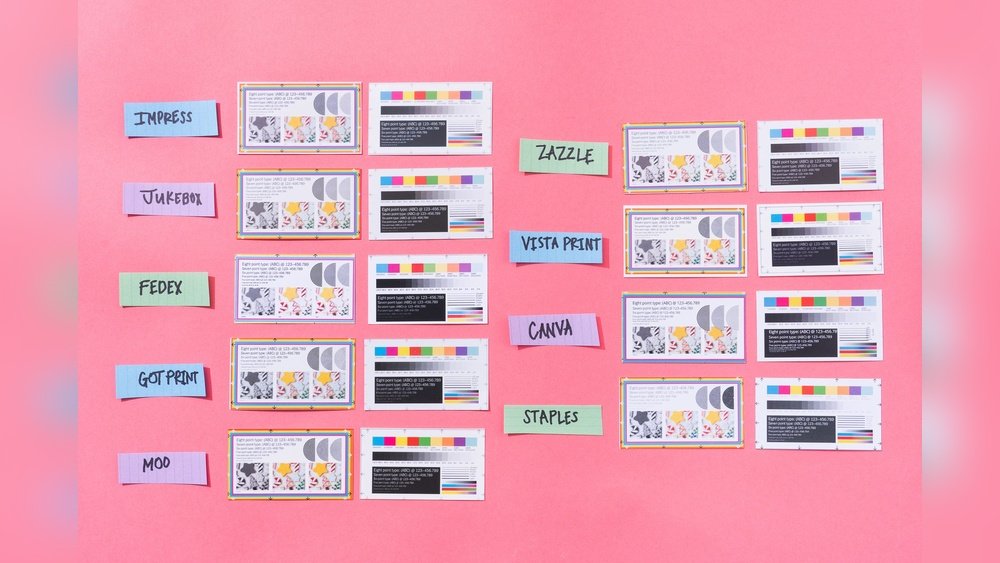
Professional printers offer expert quality and detail. They use special machines for sharp images. Discuss your design and paper choice before printing. Professionals can suggest improvements to your file. This choice fits those needing perfect, high-quality cards.
Credit: www.vistaprint.com
Frequently Asked Questions
How Do I Set Business Card Size In A Pdf?
Open your PDF editor and choose the page size option. Set dimensions to 3. 5 x 2 inches, the standard business card size. Save your file with these settings to ensure accurate printing.
What Printer Settings Ensure Correct Business Card Size?
Select “Actual Size” or 100% scale in your printer settings. Disable any “Fit to Page” or scaling options. This prevents resizing and keeps your cards at the correct dimensions.
Can I Print Multiple Business Cards On One Pdf Page?
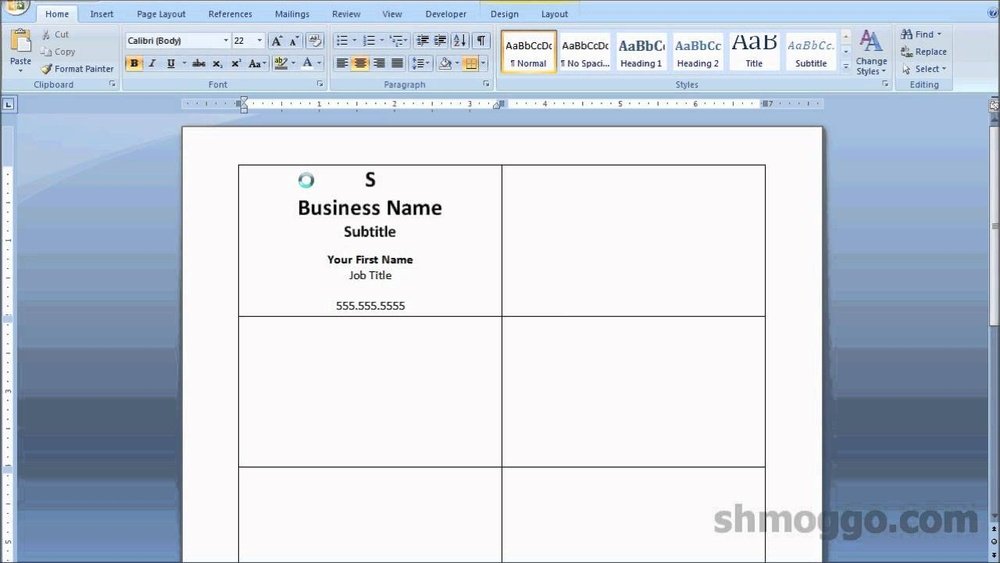
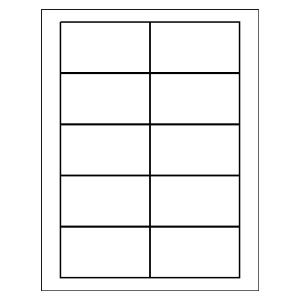
Yes, arrange multiple cards in a grid layout within the PDF. Use software that supports business card templates or create custom layouts. This saves paper and speeds up printing.
How Do I Avoid Blurry Text On Business Card Pdfs?
Use high-resolution images and vector graphics in your PDF. Set the DPI to at least 300 for crisp text. Avoid enlarging low-quality images to maintain sharpness.
Conclusion
Printing a business card size PDF is simple with the right steps. Choose the correct size and set your printer properly. Use quality paper for a sharp, professional look. Check the print preview before printing to avoid mistakes. Small details matter for a great first impression.
Follow these tips to create neat, clear business cards every time. Keep practicing to improve your printing skills. Your business cards will stand out and help you connect with others easily.