Are you ready to make a strong first impression with your business cards? Knowing how to print business card size correctly is key to ensuring your cards look professional and stand out.
Thank you for reading this post, don't forget to subscribe!Whether you’re designing your own cards or preparing files for a printer, getting the size right can save you time, money, and frustration. In this guide, you’ll discover simple steps to print business cards that fit perfectly in wallets, cardholders, and hands.
Keep reading to learn how to create sharp, eye-catching cards that truly represent you and your brand.
Choosing The Right Dimensions
Choosing the right dimensions for your business cards is very important. The size affects how your card looks and feels. It also impacts how easy it is to carry and store. A well-sized card makes a good first impression. It helps your contact details stand out clearly. Understanding standard and custom sizes helps you pick the best option.
Standard Business Card Sizes
The most common business card size is 3.5 by 2 inches. This size fits easily into wallets and cardholders. It is familiar to most people and works well worldwide. Another popular size is 3.5 by 1.75 inches, which is slightly smaller. Standard sizes keep printing simple and often cost less. They also ensure your card looks professional and balanced.
Custom Size Options
Custom sizes let you create unique, memorable cards. You can choose square shapes or longer rectangles. Some businesses use mini cards that are 2 by 2 inches. Custom sizes can match your brand style better. Yet, unusual sizes may not fit standard holders. Custom cards might cost more to print. Think about how and where people will keep your card.
Selecting The Paper Type
Selecting the right paper type is key to printing business card size designs. The paper affects how your card feels and looks. It also impacts the durability of the card. Choosing the proper paper can make your card stand out. It helps leave a lasting impression on clients and partners.
The paper type must suit your brand and style. Some papers are smooth and shiny. Others have a rough or matte finish. The weight of the paper also matters. Thicker paper feels more professional. Thinner paper may feel cheap or fragile. Consider these factors before printing.
Common Paper Stocks
Cardstock is the most common paper for business cards. It is thicker and stronger than regular paper. Typical weights range from 80 lb to 110 lb. Higher weight means a sturdier card. Some popular stocks include matte, glossy, and uncoated.
Matte cardstock has a smooth, non-shiny surface. It gives a clean and modern look. Glossy cardstock shines and reflects light. It makes colors appear bright and sharp. Uncoated cardstock feels natural and soft. It is easy to write on with pens or pencils.
Finishes And Coatings
Finishes add texture and protection to your card. They affect the card’s look and feel. Common finishes include matte, gloss, and satin. Matte finish reduces glare and gives a smooth touch. Gloss finish increases shine and color depth. Satin finish offers a soft shine between matte and gloss.
Coatings protect cards from dirt and damage. UV coating is a strong, shiny layer. It makes cards water-resistant and durable. Soft-touch coating gives a velvety feel. It adds a luxury touch to your cards. Choose a finish or coating based on your card’s style and use.
Designing For Print
Designing for print is different from designing for screens. It needs careful planning to make sure the final product looks good.
Business cards are small. Every detail counts, from text size to image placement. Knowing how to set up your design helps avoid mistakes during printing.
Setting Up The Layout
Start with the right size. A standard business card is 3.5 by 2 inches. Use this as your canvas in the design software.
Choose a clear font that is easy to read. Keep important information like name and contact visible. Avoid cluttering the space.
Use high-resolution images or logos. Low-quality images look blurry when printed. Set your file’s resolution to 300 dpi for best results.
Safe Margins And Bleeds
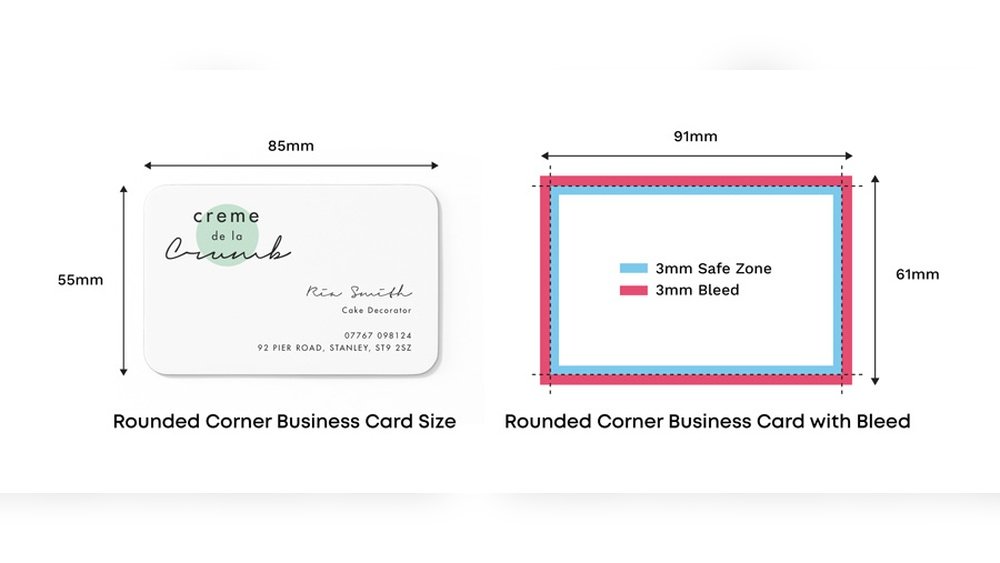
Safe margins keep text and logos away from edges. This prevents cutting off important parts during trimming.
Set at least 0.125 inches (3 mm) inside the card edges as a safe zone. Keep all critical content inside this area.
Bleeds extend the background or images beyond the card edges. Usually, 0.125 inches extra on each side is enough.
Bleeds ensure the design reaches the edge without white lines after trimming. Include bleeds in your file before sending to print.
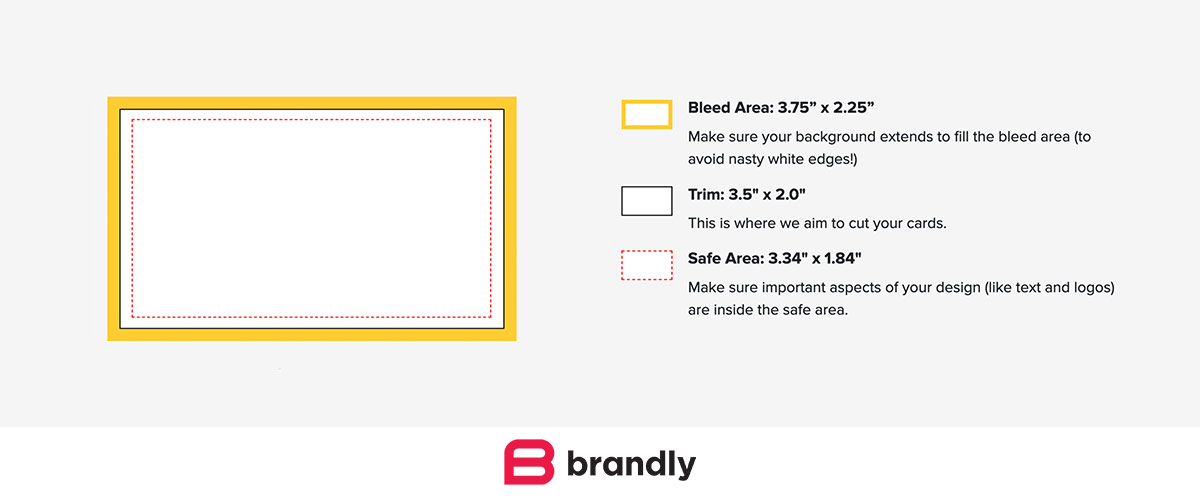
Credit: www.brandly.com
Using Design Software
Using design software helps you create and print business cards easily. It gives full control over size, colors, and details. You can design cards that look professional and fit standard sizes.
Design software lets you set exact dimensions for your business card. This ensures the final print matches your expectations. It also lets you add text, logos, and images with precision.
Popular Tools
Adobe Illustrator is a popular choice for business card design. It offers precise tools and many templates. CorelDRAW is another option with strong design features. Canva is easy for beginners and has many ready-made templates. Microsoft Publisher also works well for simple card designs. Choose a tool that matches your skills and needs.
Exporting Print-ready Files
Save your design in a print-ready format for best results. PDF is the most common and accepted file type. Set the resolution to 300 DPI for clear printing. Include crop marks and bleed to avoid white edges. Check colors are in CMYK mode for accurate print colors. Always review the file before sending it to the printer.
Printing Methods
Printing business card size materials needs care and the right method. The chosen printing method affects the quality, cost, and time of your cards. Two common ways exist: printing at home or using professional services. Each has its own benefits and tips to get the best results.
Home Printer Tips
Using a home printer saves money and gives quick results. Choose thick paper made for business cards. Regular paper will feel cheap and may tear easily. Set your printer to the highest quality mode for sharp text and images.
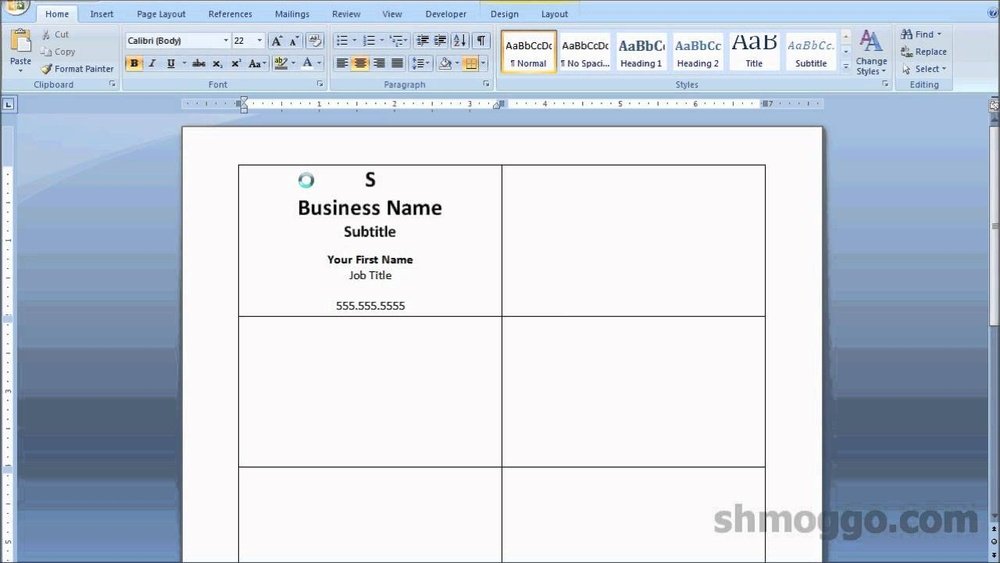
Use a template that matches business card size exactly. This helps keep the design inside the safe area. Print a test page on plain paper to check alignment before using thick card stock. Cut cards carefully with a ruler and sharp blade for clean edges.
Professional Printing Services
Professional printers offer high-quality cards with special paper and finishes. They use machines that print sharp colors and crisp text. Options include matte, glossy, or textured finishes that stand out.
Printing services also cut cards precisely, ensuring perfect size and shape. Bulk orders lower the cost per card. This method suits those needing many cards or a polished look. Upload your design file following the printer’s guidelines to avoid errors.
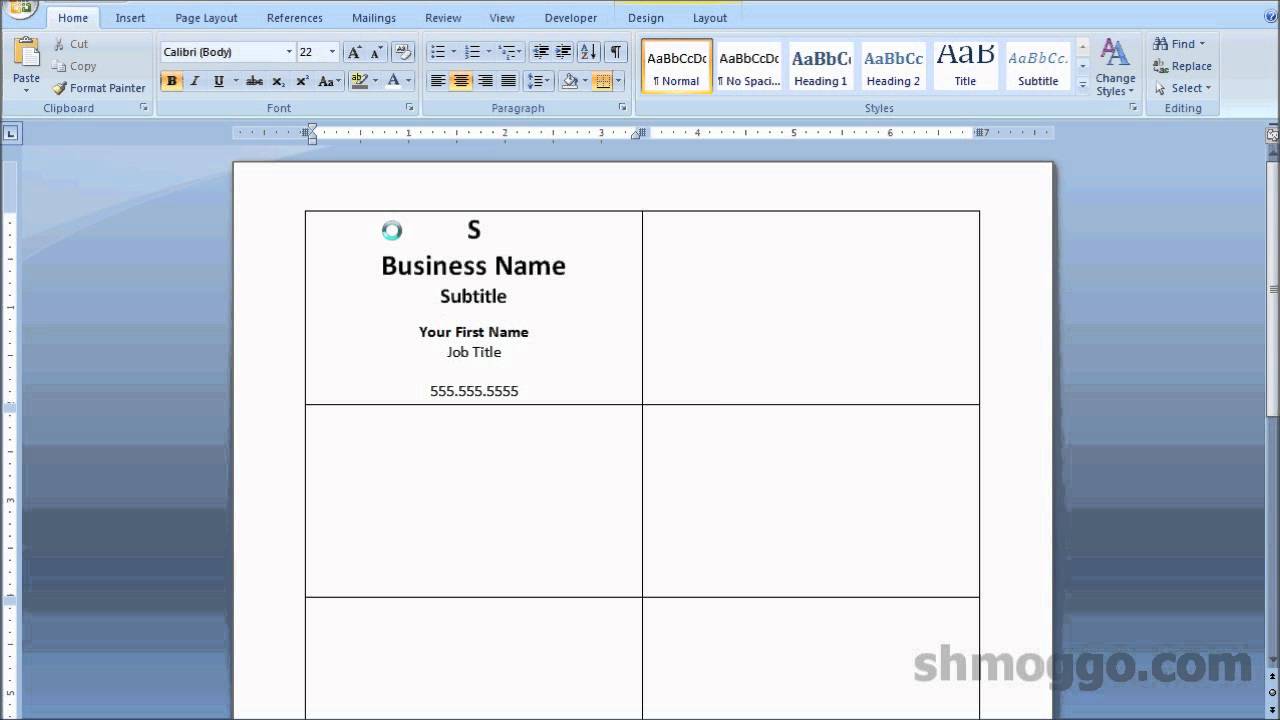
Credit: www.youtube.com
Cutting Business Cards
Cutting business cards is a key step after printing. It gives the cards a clean, professional look. Precise cutting ensures each card is the correct size and shape. Poor cutting can make cards look messy and unprofessional. There are two main ways to cut business cards: manual techniques and cutting machines. Each method has its own benefits and suits different needs.
Manual Cutting Techniques
Manual cutting uses tools like scissors, craft knives, or paper cutters. A paper cutter is best for straight, even cuts. It holds the paper steady and slices through with one motion. Marking guidelines on the paper before cutting helps keep cards uniform. Cutting slowly and carefully prevents mistakes and uneven edges. This method works well for small batches of cards. It requires patience and steady hands for the best results.
Using Cutting Machines
Cutting machines provide fast and accurate cuts. They are ideal for large quantities of business cards. These machines use blades or lasers to cut cards precisely. Most cutting machines can handle thick card stock easily. They reduce human error and save time. Some models allow you to set exact card sizes. This option is perfect for businesses that print cards often or in bulk.
Troubleshooting Common Issues
Printing business cards can bring some problems. These issues can affect how the card looks and feels. Knowing how to fix common problems saves time and money. It makes the final product professional and neat.
Color Accuracy
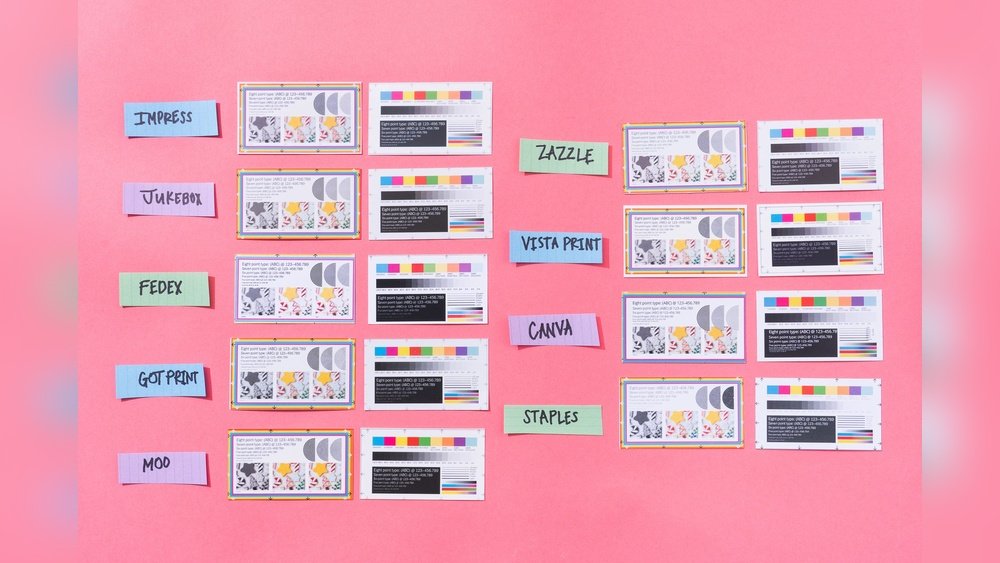
Colors on the screen may not match printed colors. This happens because screens use light, printers use ink. Check printer settings for correct color profiles. Use CMYK mode for printing, not RGB. Print a test page before the final run. Adjust color settings if colors look dull or wrong. Use good quality paper for better color results.
Alignment Problems
Cards may print off-center or uneven. This happens if paper is not loaded properly. Check paper guides in the printer tray. Use the correct size setting for business cards. Print alignment tests to see if lines match. Adjust margins in your design file if needed. Avoid moving the paper during printing to keep alignment.

Credit: www.48hourprint.com
Frequently Asked Questions
What Is The Standard Size For Business Cards?
The standard business card size is 3. 5 x 2 inches. This size fits most cardholders and printers. It ensures professional appearance and easy handling.
How Do I Set Business Card Size In Printing Software?
Open your printing software and select custom dimensions. Enter 3. 5 inches width and 2 inches height. Confirm the settings before printing to avoid size errors.
Can I Print Business Cards At Home Printer?
Yes, you can print business cards at home with quality cardstock. Use a high-resolution printer and set correct size. Trim edges carefully for a professional look.
Which Paper Type Is Best For Business Card Printing?
Thick cardstock with a matte or glossy finish is ideal. It offers durability and a professional feel. Avoid thin or low-quality paper for business cards.
Conclusion
Printing business card size is simple with the right steps. Choose the correct dimensions and resolution for clear results. Use quality paper and check your printer settings carefully. Cut the cards precisely for a professional look. Practice makes perfect, so try a test print first.
Follow these tips to create neat and effective business cards. Your cards will leave a good impression every time. Keep your design clean and easy to read. Now, you are ready to print business cards with confidence.