Do you need business cards but don’t want to wait or spend a lot on printing? Printing your own business cards at home can save you time and money.
Thank you for reading this post, don't forget to subscribe!It also gives you full control over the design and quality. You’ll learn simple, step-by-step tips to create and print professional-looking business cards right from your own printer. Keep reading, and by the end, you’ll have the confidence to make business cards that leave a great impression—without leaving your house.
Credit: www.befunky.com
Choosing The Right Paper
Choosing the right paper is key to printing great business cards at home. The paper affects how your card looks and feels. It also impacts the durability and how colors appear. Picking good paper makes your card stand out and feel professional.
Paper Types For Business Cards
Business cards come in different paper types. Matte paper has a smooth, non-shiny surface. It looks clean and is easy to write on. Glossy paper shines and makes colors bright. It feels slick and looks modern. Linen paper has a textured finish. It adds a touch of class and feels unique. Choose a type that fits your style and brand.
Recommended Paper Weight
Paper weight is the thickness of the paper. Measured in pounds or grams per square meter (gsm). For business cards, 80 to 110 lb or 200 to 300 gsm is ideal. Thicker paper feels sturdy and high quality. Thin paper may bend or look cheap. A heavier weight gives a better first impression.
Where To Buy Quality Paper
Buy paper from trusted stores or online shops. Office supply stores often carry good paper for business cards. Specialty paper shops have more options and textures. Online stores offer bulk paper at low prices. Check reviews to find reliable sellers. Choose paper made for inkjet or laser printers, depending on your printer type.
Designing Your Business Card
Designing your business card is a key step in printing it at home. A well-designed card makes a strong first impression. It shows your professionalism and style. Keep the design clean and clear. Avoid clutter and too many colors. Focus on what matters most.
Using Design Software
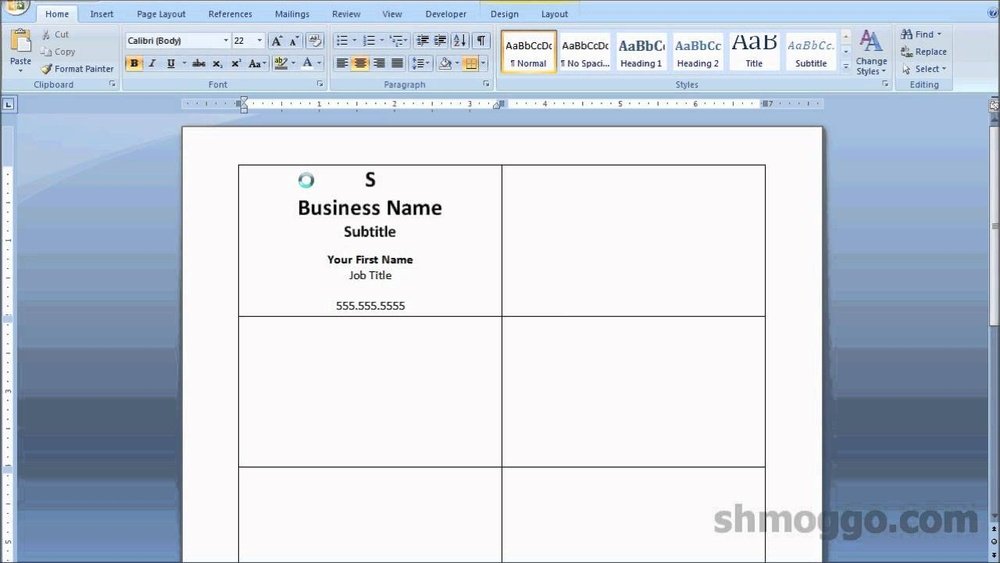
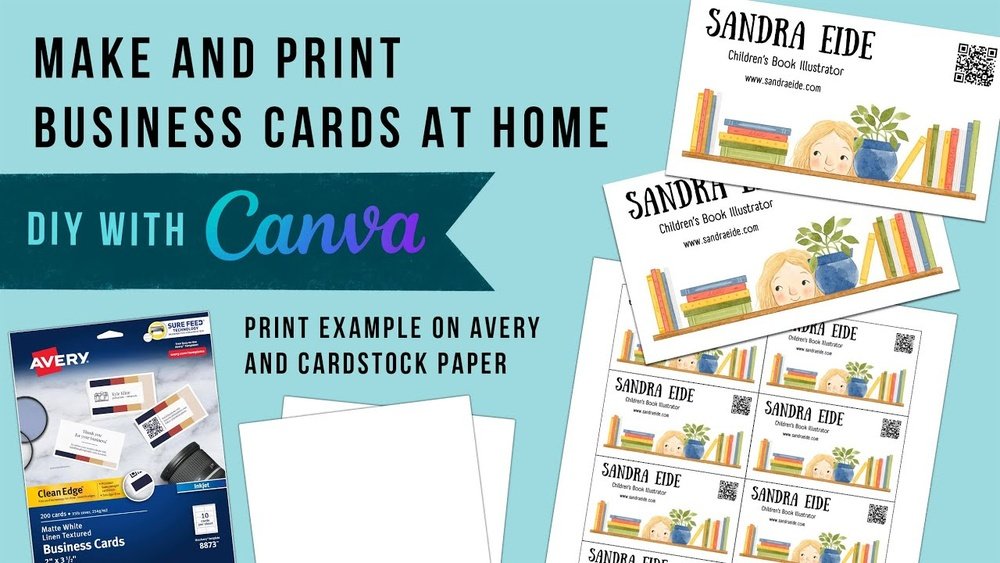
Design software helps you create neat business cards. Programs like Canva, Adobe Spark, or Microsoft Publisher work well. They offer easy tools for beginners. Drag and drop images, add text, and pick colors. Save your design in a print-ready format like PDF. This ensures your card looks sharp when printed.
Essential Elements To Include
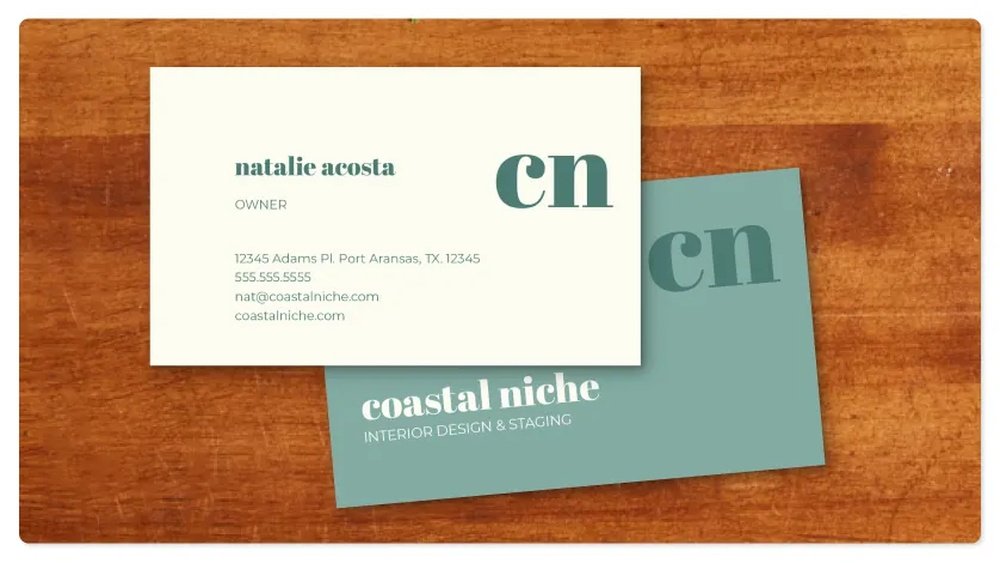
Include your name and job title on the card. Add your company name and logo for brand identity. Your phone number and email must be easy to find. A website or social media link can be useful too. Keep the font readable and size proper. White space helps the card look clean and neat.
Templates Vs Custom Designs
Templates offer quick and simple design options. They save time and guide your layout. Custom designs give you full control over style. You can match your brand colors and fonts exactly. Templates are good for beginners. Custom designs suit those who want unique cards. Choose what fits your skills and needs best.
Setting Up Your Printer
Setting up your printer correctly is key to printing sharp business cards at home. A good setup helps avoid wasted paper and ink. It also makes sure your cards look professional. Follow these steps to prepare your printer for the best results.
Printer Types Suitable For Cards
Inkjet printers work well for colorful cards with photos. They blend colors smoothly and produce bright images. Laser printers offer crisp text and fast printing. They handle heavy card stock better. Choose a printer that supports thick paper. Check the maximum paper weight your printer can handle.
Adjusting Printer Settings
Set your printer to the highest quality mode. Use the “photo” or “best” print setting. Choose the correct paper type, like “cardstock” or “heavy paper.” Disable any automatic resizing or scaling options. Make sure the layout matches your card size. This avoids cut-off edges or misaligned prints.
Using Ink Efficiently
Print a test page first to check colors and alignment. Use draft mode only for practice prints. Avoid printing full-color backgrounds on every card. Save ink by using white space or simple designs. Replace cartridges promptly to prevent streaks or faded prints. Store ink cartridges in a cool, dry place to keep them fresh.
Credit: www.avery.com
Printing Process
The printing process is key to making business cards at home. It takes careful steps to get sharp, clear cards. This section guides you through each step for best results. Follow simple tips to avoid waste and save time. Ready to print like a pro?
Aligning Cards On The Paper
Start by placing the card template on your paper. Use a ruler or guide to keep cards straight. Make sure cards do not overlap or touch edges. Correct alignment stops cutting mistakes later. Lightly mark the paper edges if needed. Keep the paper flat to avoid jams.
Test Printing Tips
Print a test page on plain paper first. Check if cards line up with your design. Look for color accuracy and sharp text. Adjust printer settings if needed. Use draft mode to save ink during tests. Confirm layout fits your card stock size.
Handling Common Printing Issues
Blurred text? Clean your printer heads gently. Paper jams? Use smooth, thick card paper only. Colors off? Calibrate your printer regularly. Cards not cutting right? Adjust template margins. Print one sheet at a time to avoid errors. Keep printer software updated for best results.
Cutting And Finishing
Cutting and finishing are key steps in printing business cards at home. These steps give your cards a clean, professional look. Proper cutting ensures each card is the right size and shape. Finishing adds a touch of style and protects your design. Taking time here improves the final product.
Tools For Cutting Cards
A good cutting tool makes a big difference. Use a paper trimmer for straight, even cuts. A craft knife with a ruler works well for small jobs. Scissors can work but may cause uneven edges. A metal ruler helps guide your cuts for accuracy. Choose tools that feel comfortable and safe to use.
Tips For Precise Edges
Cut slowly and carefully to avoid mistakes. Measure twice, cut once. Use a cutting mat to protect your surface. Hold the ruler firmly to stop it from moving. Keep your blade sharp to make clean cuts. Avoid rushing, as it leads to rough edges. Check each card after cutting to ensure consistency.
Adding Special Finishes
Special finishes make your cards stand out. Try laminating to add shine and durability. Use corner rounders for smooth, curved edges. Consider embossing for raised designs that feel nice. Matte sprays reduce glare and give a soft look. Choose finishes that match your card style and purpose.
Cost And Time Management
Managing cost and time is key when printing business cards at home. It helps keep your project on budget and finish fast. Knowing what to expect saves stress and waste. Let’s explore how to estimate costs and manage your time well.
Estimating Material Costs
Start by listing all needed materials. Paper type and quality affect price a lot. Ink or toner costs add up with color prints. Think about extra items like cutting tools or holders. Compare prices online and in stores for best deals. Calculate cost per card to see if home printing saves money.
Time Required For Printing
Printing takes time depending on your printer speed. Setup and test prints add to total time. Cutting cards can be slow without a cutter. Plan enough time for drying if using inkjet printers. More cards mean more time, so print in small batches. Track your time to improve future projects.
Balancing Quality And Efficiency
High quality prints need better paper and ink. They take longer to prepare and dry. Faster printing may lower card quality. Find a balance that fits your needs. Test different settings to see what works best. Quality matters most if you want a good impression.
:max_bytes(150000):strip_icc()/GettyImages-185290004-5ad89fc4eb97de003770381a.jpg)
Credit: www.thebalancemoney.com
Frequently Asked Questions
How Do I Choose The Right Paper For Business Cards?
Select thick, high-quality cardstock, ideally 300-350gsm, for professional business cards. Matte or glossy finishes work well. Avoid thin or standard printer paper to ensure durability and a premium look. Specialty business card paper is available at office supply stores or online.
What Printer Settings Work Best For Business Cards?
Use high-resolution settings (at least 300 dpi) for sharp images and text. Choose the correct paper type in printer settings to avoid smudging. Select borderless printing if available to ensure full-bleed designs. Adjust color settings to match your design colors accurately.
Can I Design Business Cards Using Free Software?
Yes, free software like Canva, GIMP, or Google Docs offer business card templates. These tools are user-friendly and allow customization of fonts, colors, and layouts. Ensure your design matches standard business card dimensions before printing.
How Do I Cut Business Cards At Home Neatly?
Use a paper trimmer or a sharp craft knife with a ruler for straight edges. Cut slowly and carefully along the printed guidelines. Avoid scissors for best precision. Consider scoring the paper first to make folding easier if needed.
Conclusion
Printing business cards at home saves time and money. You control the design and quality easily. Choose good paper and a clear printer for best results. Practice on plain paper before the final print. Cut the cards carefully to keep them neat.
Small steps make a big difference in the final look. Now, you can create professional cards without leaving your home. Give it a try and see how simple it can be!