Looking to create professional business cards without spending a fortune? You can easily make your own right at home using your HP printer.
Thank you for reading this post, don't forget to subscribe!Imagine handing out cards that truly represent your brand, designed exactly how you want them. In this guide, you’ll discover simple steps to design, print, and finish business cards that impress. Keep reading, and you’ll learn how to turn your ideas into high-quality cards that open doors and start conversations.
Your next great opportunity could be just one card away.

Credit: www.youtube.com
Choosing Cardstock
Choosing the right cardstock is key to making great business cards with an HP printer. The paper you pick affects how your cards look and feel. It also changes how the ink shows on the card. Picking the best cardstock helps your cards stand out and last longer. Consider a few important points before buying your paper.
Selecting Paper Weight
Paper weight tells how thick and strong the cardstock is. Business cards usually use cardstock from 80 to 110 pounds. Thicker paper feels more professional and sturdy. Thin paper may bend or tear easily. Choose a weight that matches the image you want for your business.
Matte Vs Glossy Finish
Matte cardstock has a smooth, non-shiny surface. It gives a soft, elegant look. Glossy cardstock shines and reflects light. It makes colors look bright and sharp. Matte is easier to write on. Glossy may smudge if not dried well. Pick the finish that fits your style and brand.
Where To Buy Cardstock
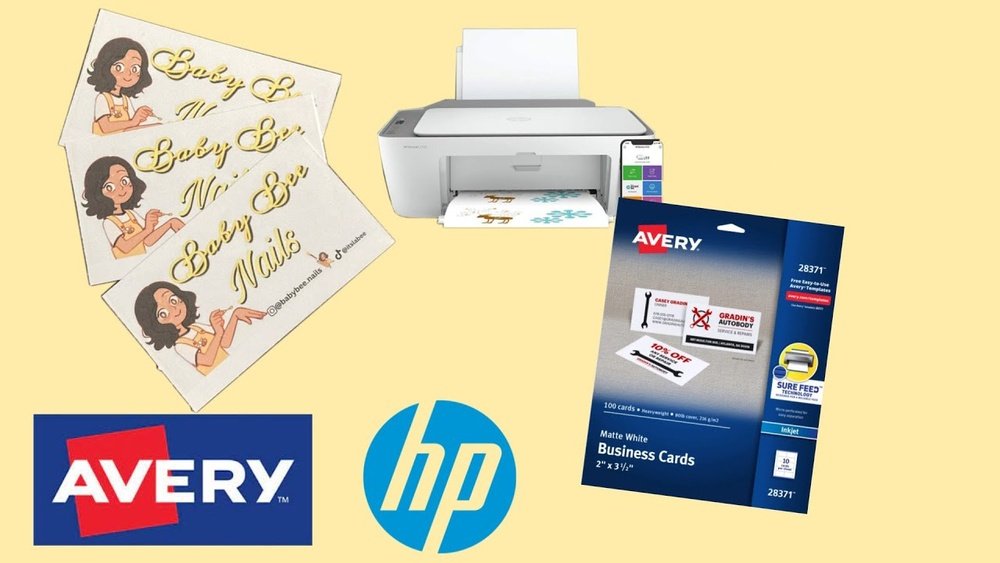
Cardstock is available at office supply stores and craft shops. Online stores offer many sizes and finishes. Buy from trusted sellers to ensure quality. Check if the paper works with your HP printer model. Buying the right cardstock saves time and gives better results.
Designing Your Card
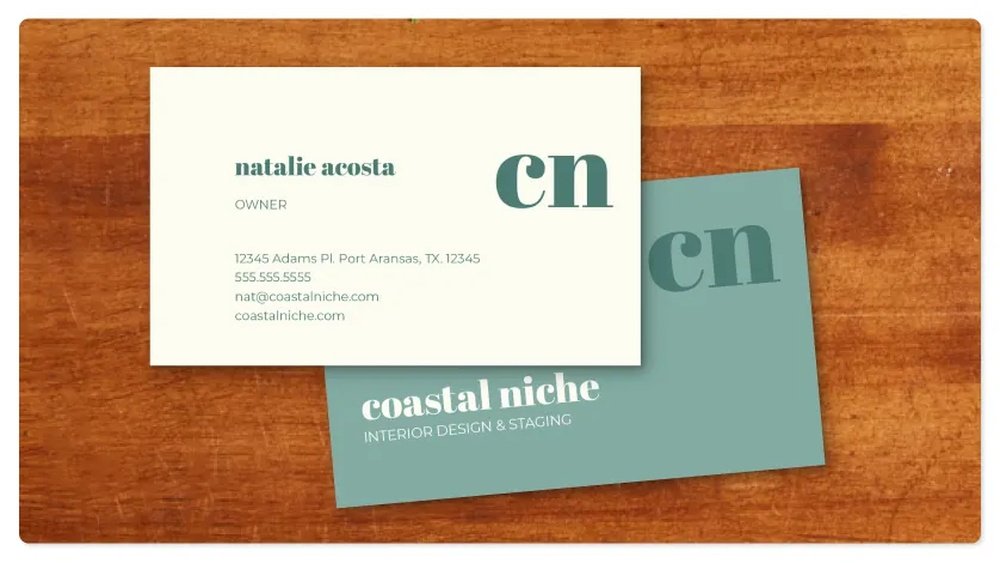
Designing your business card is the first step to make it stand out. A well-designed card shows your brand and personality clearly. It must be simple, clear, and professional. Use easy tools and templates to create a unique design. Focus on the essential details like your name, job title, and contact information.
Colors, fonts, and layout affect how people see your card. Choose styles that match your business style. The design should be neat and easy to read. Use your HP printer’s features to get the best print quality.
Using Hp Software
HP provides free software to help you design cards. This software is simple to use and comes with many tools. You can add text, images, and logos easily. It supports different sizes and templates for business cards. The software also lets you preview your design before printing. It helps avoid mistakes and saves paper.
Free Online Templates
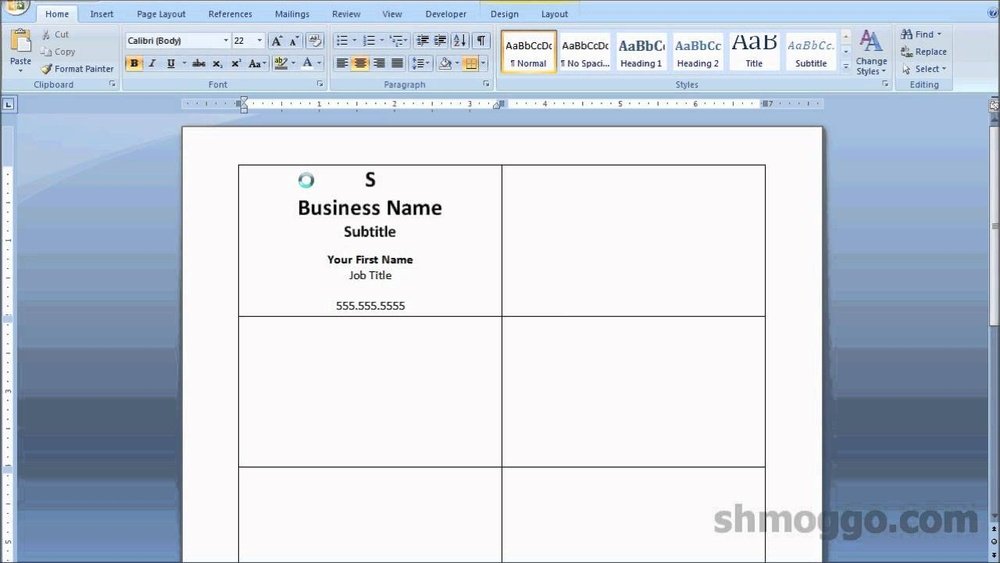
Many websites offer free business card templates. These templates are ready-made designs you can edit. Choose a template that fits your business style. Most templates let you change the text and images. Download the template and open it in HP software. This method saves time and gives professional results.
Customizing Layout And Colors
Layout means how your card’s elements are arranged. Place your name and contact details clearly. Use enough space between text for easy reading. Choose colors that match your brand or logo. Keep colors simple and avoid too many bright shades. Consistent colors make your card look clean and smart. Adjust fonts to be bold and readable.
Printer Setup
Setting up your HP printer correctly is key for great business cards. Proper setup avoids paper jams and poor print quality. Follow each step to prepare your printer and get the best results.
Loading Cardstock Properly
Use thick cardstock designed for business cards. Open the paper tray and place the cardstock with the print side facing down. Align the paper guides snugly against the cardstock edges. Do not overload the tray; keep the stack under the maximum limit. This prevents jams and ensures smooth feeding.
Adjusting Print Settings
Open your printer settings on the computer. Select the correct paper type, usually “Cardstock” or “Heavy Paper.” Set the print quality to “High” or “Best.” Choose the correct size that matches your business card dimensions. This step improves sharpness and color accuracy.
Using The Right Ink Cartridges
Use original HP ink cartridges for clear, vibrant prints. Check ink levels before starting to avoid running out mid-print. Replace low or empty cartridges promptly. Avoid mixing cartridge brands to maintain color consistency. Proper ink ensures professional-looking business cards.
Printing Process
The printing process is the heart of making business cards with an HP printer. It needs careful steps to get clear and professional cards. Proper settings and good paper help a lot. Follow each step to avoid mistakes and waste.
Start by choosing the right paper. Use thick, smooth card stock. Set your printer to the best quality print. Adjust margins and size to fit your card design. These small details make a big difference in the final look.
Test Print Tips
Always do a test print on regular paper. Check colors, alignment, and text size carefully. Make sure nothing is cut off or blurry. Test prints save ink and paper. Adjust your design if needed before printing on card stock.
Printing Multiple Cards
Use a template that fits several cards on one sheet. This saves paper and time. Set your printer to print multiple pages per sheet. Cut cards carefully along the lines. Keep your work area clean to avoid smudges.
Troubleshooting Common Issues
Ink smudges? Let cards dry longer before stacking. Colors faded? Replace or clean your ink cartridges. Paper jams? Use the right paper type and check for debris inside the printer. If alignment is off, recalibrate your printer settings for accuracy.
Cutting And Finishing
Cutting and finishing are key steps in making business cards with an HP printer. They give your cards a clean and professional look. Proper cutting ensures all cards are the same size. Finishing adds style and protects the card’s surface.
Using A Paper Cutter
A paper cutter helps cut business cards evenly. It gives straight and sharp edges without tearing. Place the printed sheet on the cutter and align it carefully. Press down the blade to slice through the paper. Repeat until all cards are cut. This tool saves time and improves precision.
Rounding Corners
Rounded corners make business cards look modern and neat. They also prevent edges from bending or fraying. Use a corner rounder tool to shape the corners easily. Insert each corner into the tool and press down. This small change adds a stylish touch to your cards.
Adding Protective Coatings
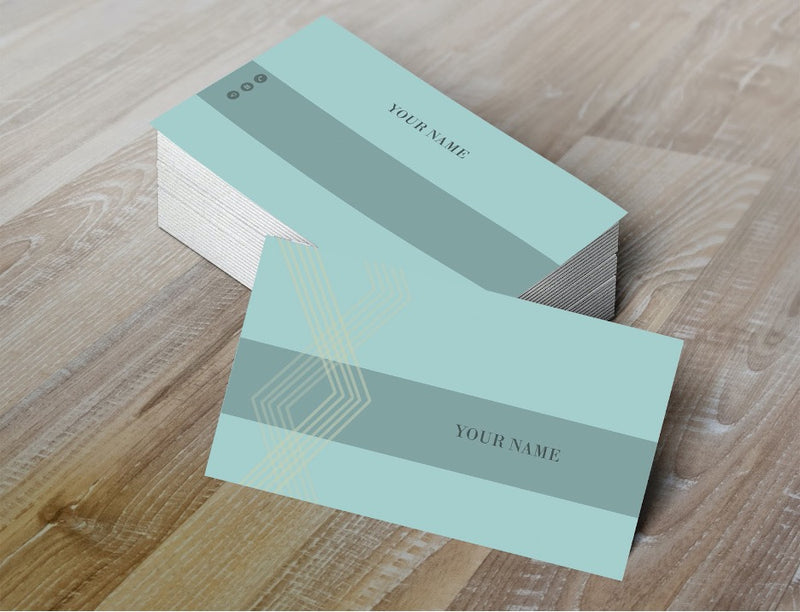
Protective coatings keep business cards safe from damage. You can apply a clear spray or laminate sheets. These coatings stop smudges, water, and dirt from ruining the print. Wait for the coating to dry fully before handling the cards. A smooth finish makes your cards last longer.
Credit: inkgenie.com
Tips For Professional Results
Creating business cards with your HP printer can be simple. Achieving a professional look takes some care and attention. Follow these tips for the best results. They help your cards look sharp and clean.
Consistent Color Matching
Use the same paper type for all prints. Set your printer to the correct paper setting. Check the color settings before printing. Print a test page to see the colors. Adjust the printer settings if colors look off. Consistent colors make your cards look professional.
Avoiding Smudges
Choose high-quality, quick-drying paper. Let each card dry fully before stacking. Avoid touching the printed side too soon. Clean the printer heads regularly for clear prints. Smudges ruin the neat look of your cards.
Storage And Handling
Store printed cards in a dry, cool place. Keep them flat to avoid bends or creases. Use a protective case or box to prevent damage. Handle cards by the edges to keep them clean. Proper storage keeps your cards fresh and neat.
Credit: versacheckstore.com
Frequently Asked Questions
How Do I Design Business Cards For Hp Printers?
Use HP’s free design software or online templates. Customize text, colors, and logos. Save your design in high resolution for best print quality.
What Type Of Paper Is Best For Hp Business Cards?
Choose thick cardstock, preferably 250-300 gsm. Matte or glossy finishes work well. Ensure paper is compatible with your HP printer model.
Can I Print Double-sided Business Cards With Hp Printers?
Yes, many HP printers support double-sided printing. Use the manual duplex option if automatic duplex isn’t available. Align designs carefully for professional results.
How Do I Avoid Ink Smudging On Hp Printed Cards?
Use quick-dry ink and let the cards dry completely. Avoid touching the printed surface immediately after printing. Use HP’s original ink for best results.
Conclusion
Creating business cards with an HP printer is simple and quick. Choose your design, load the right paper, and print carefully. Check the colors and text before starting the full print. You can make cards that look professional and match your style.
This saves money and lets you update your cards anytime. Try different designs to find what fits your business best. Printing at home gives control and saves trips to the store. Start making your cards today and share your contact with confidence.