
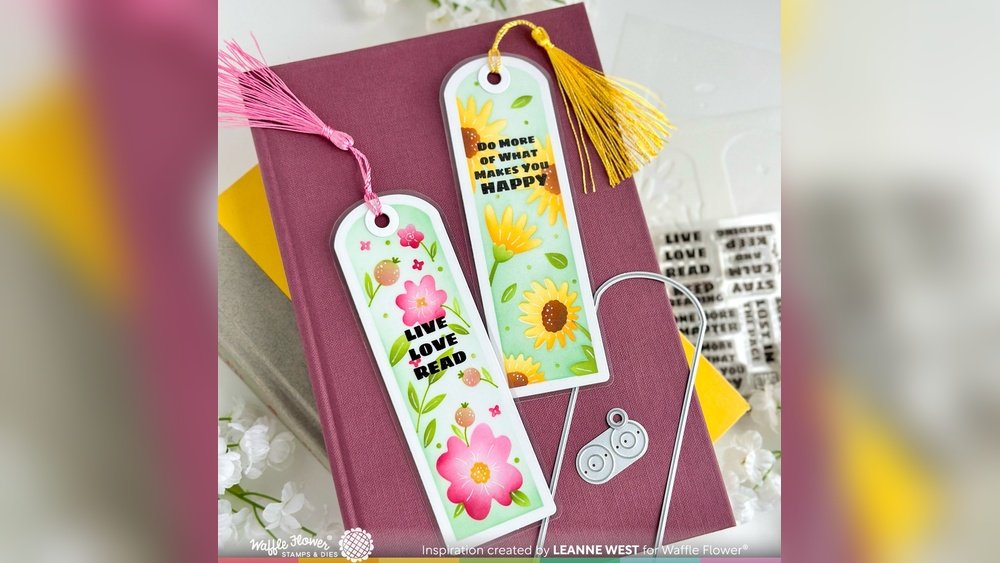
Have you ever found the perfect article or website but lost it when you needed it most? That’s where a bookmark comes in handy.
Thank you for reading this post, don't forget to subscribe!A bookmark isn’t just a simple tool—it’s your secret weapon to saving time and staying organized online. Whether you’re researching, shopping, or just exploring, knowing how to use bookmarks can change the way you browse. Keep reading to discover easy tips that will help you make the most out of your bookmarks and never lose track of what matters to you again.

Credit: www.unwind.studio
Choosing The Best Bookmark Tools
Choosing the best bookmark tools helps save time and stay organized. Good tools keep your favorite sites easy to find. They also help you manage many links without confusion.
Many bookmark tools exist. Some work better for certain needs. Knowing key features makes choosing easier. Focus on usability, speed, and extra functions.
Usability And Interface
A simple, clean interface speeds up bookmarking. Easy menus and clear labels help find saved pages fast. Avoid tools with cluttered or confusing layouts.
Look for drag-and-drop options. They make organizing bookmarks smoother. Search features inside the tool also save time.
Cross-device Syncing
Bookmark tools with syncing keep your links on all devices. Save a page on your phone. Open it later on your laptop.
Syncing works best with cloud storage. It prevents loss if a device breaks or is lost. Choose tools supporting major platforms like Windows, iOS, and Android.
Organizing Features
Folders and tags help group bookmarks clearly. Tags allow multiple labels per link for easy sorting. Some tools offer notes for extra details.
Tools with smart filters speed up finding bookmarks. They sort links by date, popularity, or custom rules.
Security And Privacy
Secure tools protect your saved links from hackers. Look for encryption and password protection. Privacy policies should clearly explain data use.
Some tools offer private folders or hidden bookmarks. Use these for sensitive or personal links.
Organizing Bookmarks Efficiently
Keeping bookmarks organized saves time and reduces stress. A neat bookmark list helps find websites quickly. This section shows easy ways to keep bookmarks tidy and useful.
Using Folders And Tags
Folders group bookmarks by topic or purpose. Create folders for work, hobbies, or shopping. This method keeps related links together. Tags add extra labels to bookmarks. Tags help find bookmarks that fit several categories. Both folders and tags make browsing your bookmarks faster and clearer.
Sorting And Prioritizing Links
Sort bookmarks by date, name, or use frequency. Put most important links at the top. Prioritize bookmarks you visit often for quick access. Remove old or unused bookmarks regularly. This keeps your list clean and easy to manage.
Saving Time With Keyboard Shortcuts
Using keyboard shortcuts in Bookmark saves time and effort. It helps you do tasks faster without using a mouse. Shortcuts make navigation smooth and quick. They reduce repetitive actions and keep your focus.
Learning a few shortcuts can improve your workflow. It lets you create and edit websites with ease. This section explains useful Bookmark keyboard shortcuts.
Common Keyboard Shortcuts In Bookmark
Bookmark has simple shortcuts for everyday actions. Use Ctrl + S to save your work quickly. Press Ctrl + Z to undo mistakes. These shortcuts speed up your editing process.
Navigation Shortcuts
Move through Bookmark without using the mouse. Use Tab to jump between fields or sections. Press Shift + Tab to go back. These shortcuts help in fast navigation.
Editing Shortcuts
Editing text or elements is easier with shortcuts. Use Ctrl + C to copy and Ctrl + V to paste. Press Delete to remove unwanted parts. They save time during design changes.
Customizing Shortcuts
Bookmark allows some shortcut customization. Change shortcuts to fit your habits. This makes working more natural and faster. Check settings to adjust shortcuts easily.
Using Browser Extensions For Smart Saving
Using browser extensions for smart saving makes bookmarking easy and fast. These tools help you save web pages, images, and notes with just one click. No need to open new tabs or write links manually. They keep all your favorite content in one place.
Extensions work directly inside your browser. They let you organize bookmarks by folders or tags. You can also search saved items quickly. This saves time and keeps your browser clean.
What Are Browser Extensions?
Browser extensions are small programs added to your browser. They add new features or improve existing ones. For bookmarking, they help save and manage content on the web.
How Extensions Help With Smart Saving
Extensions simplify saving by capturing web content instantly. You can save entire pages or just parts like images or text. Some extensions let you add notes or labels to bookmarks.
Popular Extensions For Bookmarking
Several extensions support smart saving. They work with major browsers like Chrome, Firefox, and Edge. These tools offer quick saving, organizing, and syncing options.
Organizing Bookmarks With Extensions
Extensions allow sorting bookmarks into folders or categories. You can tag items for easy searching. This helps find saved content without scrolling through long lists.
Many extensions sync your saved bookmarks across devices. Save on one device, open on another. This keeps your bookmarks handy everywhere.
Syncing Bookmarks Across Devices
Syncing bookmarks across devices helps keep your favorite websites in one place. It saves time and avoids searching for links again. Whether you use a phone, tablet, or computer, synced bookmarks stay updated everywhere.
Bookmark syncing makes browsing smooth. You can start reading on one device and continue on another. No need to email links or write notes. Your bookmarks follow you automatically.
How Bookmark Syncing Works
Bookmark syncing uses cloud storage to save your links. When you add or remove a bookmark, the change updates online. All your devices connected to the same account get the update fast. This process keeps bookmarks identical on every device.
Setting Up Sync On Different Devices
Most browsers offer easy setup for bookmark syncing. Sign in with your account, like Google or Apple ID. Turn on sync in browser settings. The browser does the rest automatically. No technical skills needed.
Benefits Of Syncing Bookmarks
Syncing stops bookmark loss if a device breaks or is lost. It saves space by storing bookmarks in the cloud, not locally. You get quick access to important sites anywhere. It also helps organize bookmarks better across devices.
Creating Visual Bookmark Collections
Creating visual bookmark collections helps organize your favorite websites. It saves time and makes browsing easier. Visual bookmarks show website previews. This gives a quick look at saved pages.
These collections group related bookmarks by topics or interests. You can see all links in one place. It feels like a digital photo album for websites. This method improves memory and fast access.
What Are Visual Bookmark Collections?
Visual bookmark collections display bookmarks as images or thumbnails. Each image links to a saved page. This format is more engaging than plain lists. It helps find pages quickly using pictures.
How To Create Visual Bookmark Collections
Start by choosing a tool or app for bookmarks. Add your favorite websites with images. Organize bookmarks into groups or folders. Name each collection clearly for easy use.
Benefits Of Visual Bookmark Collections
Visual collections reduce time spent searching bookmarks. They improve memory by using images. Users enjoy a clearer overview of saved sites. Collections keep bookmarks neat and easy to manage.
Regular Bookmark Maintenance Tips
Keeping your bookmarks tidy saves time and stress. Regular maintenance helps you find important sites quickly. It also keeps your list useful and relevant. Small efforts often bring big rewards.
Removing Duplicates
Duplicate bookmarks clutter your list and cause confusion. Scan your bookmarks to spot repeated links. Delete copies to keep only one version. This makes your bookmarks cleaner and easier to use. You can use browser tools or do it manually.
Updating Outdated Links
Websites change or disappear over time. Check bookmarks for broken or outdated links often. Replace old URLs with current ones if possible. Remove links that no longer work or matter. This keeps your bookmarks reliable and helpful every day.

Credit: www.emilyley.com

Credit: crewelghoul.com
Frequently Asked Questions
What Is A Bookmark Used For In Web Browsers?
A bookmark saves website addresses for quick access later. It helps you find favorite pages fast. No need to type URLs again.
How Can I Create A Bookmark On My Phone?
Open your browser and go to the webpage you want. Tap the menu and select “Add Bookmark” or “Save. ” The page is saved for easy access.
Can Bookmarks Be Organized Into Folders?
Yes, bookmarks can be grouped into folders. This keeps related sites together and easy to find. It helps manage many bookmarks neatly.
How Do Bookmarks Improve Online Reading?
Bookmarks save the exact spot you want to return to. This is useful for long articles or research. You can continue reading anytime.
Are Bookmarks Synced Across Devices Automatically?
Many browsers sync bookmarks using your account. This means bookmarks on your phone appear on your computer. It keeps your saved pages connected.
Can I Share Bookmarks With Friends?
Yes, you can share bookmarks by exporting or sending links. Some browsers let you share folders directly. Sharing helps friends find useful sites.
How Do I Delete A Bookmark I No Longer Need?
Open your bookmark list and find the item. Tap or right-click and select “Delete” or “Remove. ” The bookmark is removed from your browser.
Conclusion
Bookmarks help you save important pages quickly. They make it easy to find websites later. You can organize bookmarks by topic or use. This saves time and reduces frustration. Using bookmarks keeps your browsing smooth and fast. Try adding bookmarks to your browser today.
Simple steps lead to better web use. Keep your favorite sites just one click away.
